
BlastShield Gateways run easily in the Microsoft Azure Cloud as virtual devices. Because of the great flexibility of the BlastWave BlastShield versions, we may use any Azure Community image, adopt the Gateway into a BlastShield Network, and then update that gateway to the version level of its Orchestrator.
Please have your credentials ready for Azure and BlastShield. The most efficient method creates a BlastShield Invitation for the Gateway before finalizing and creating the VM in Azure.
Initial Setup in Azure:
-
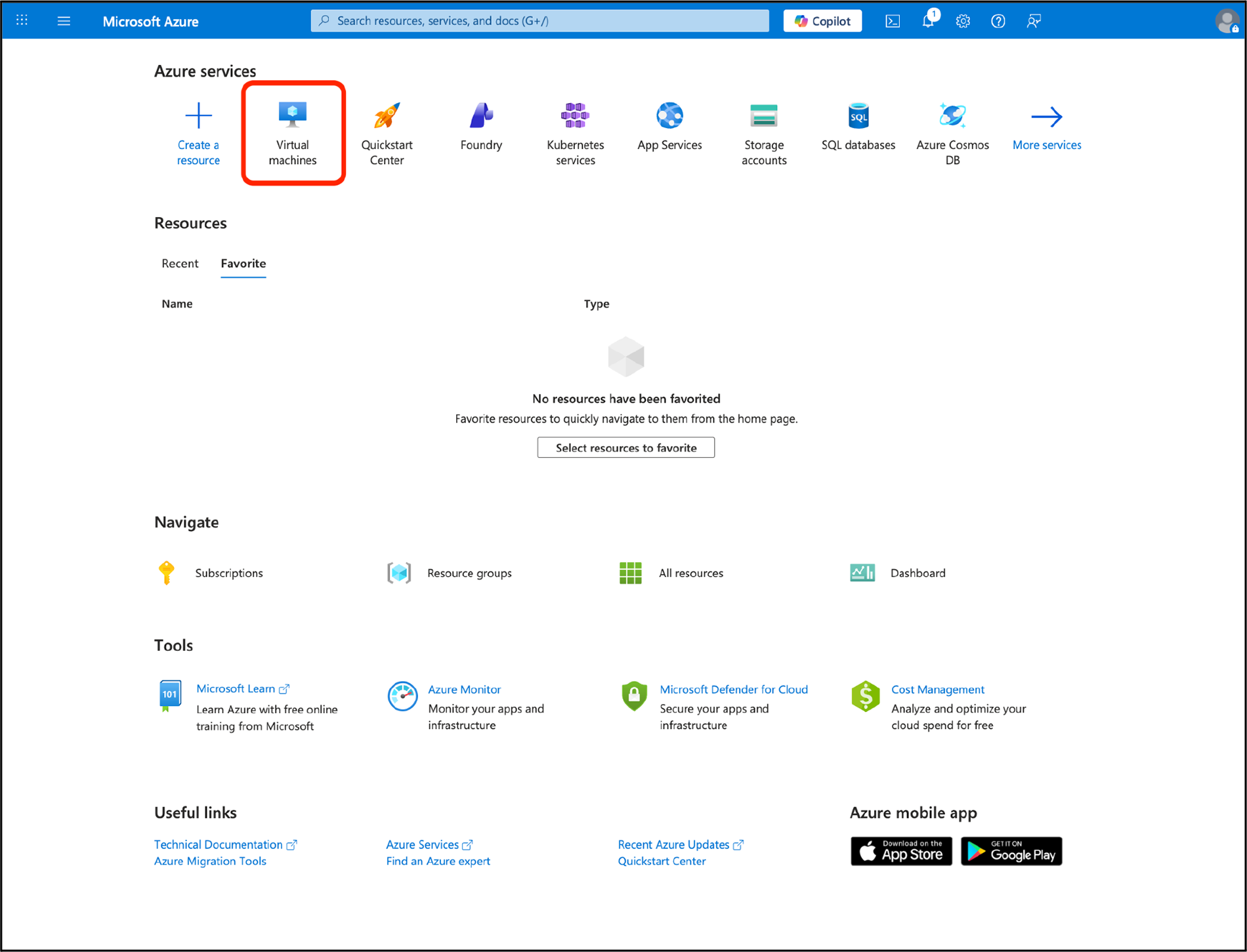
Login to your Azure account. From the main services menu, select Virtual Machines.
-
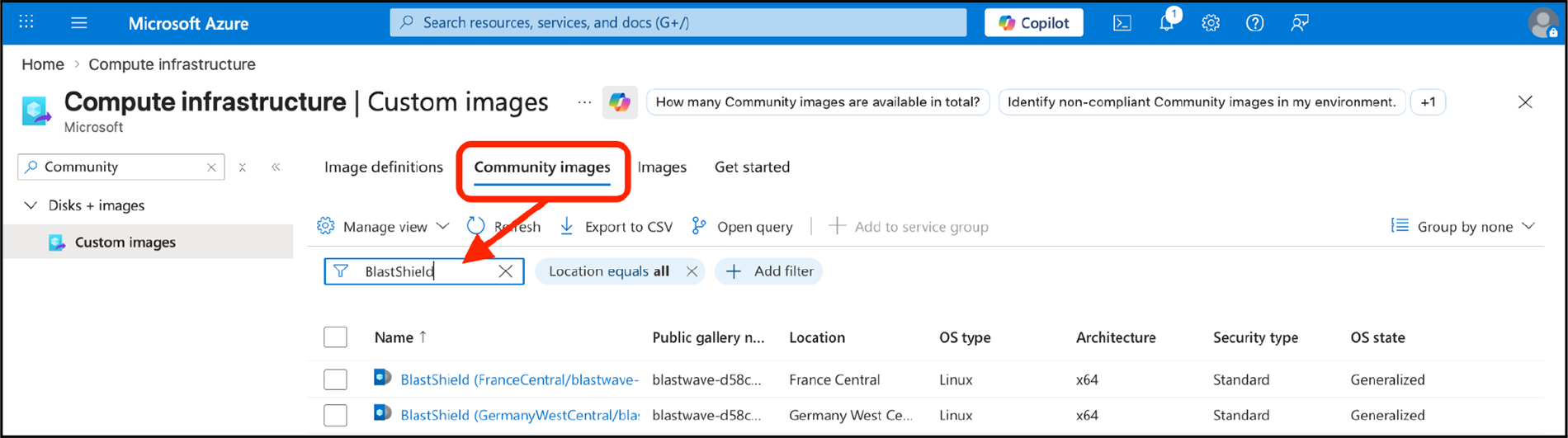
Search from the available community images for “BlastShield,” and find an image from a region nearby to you.
-
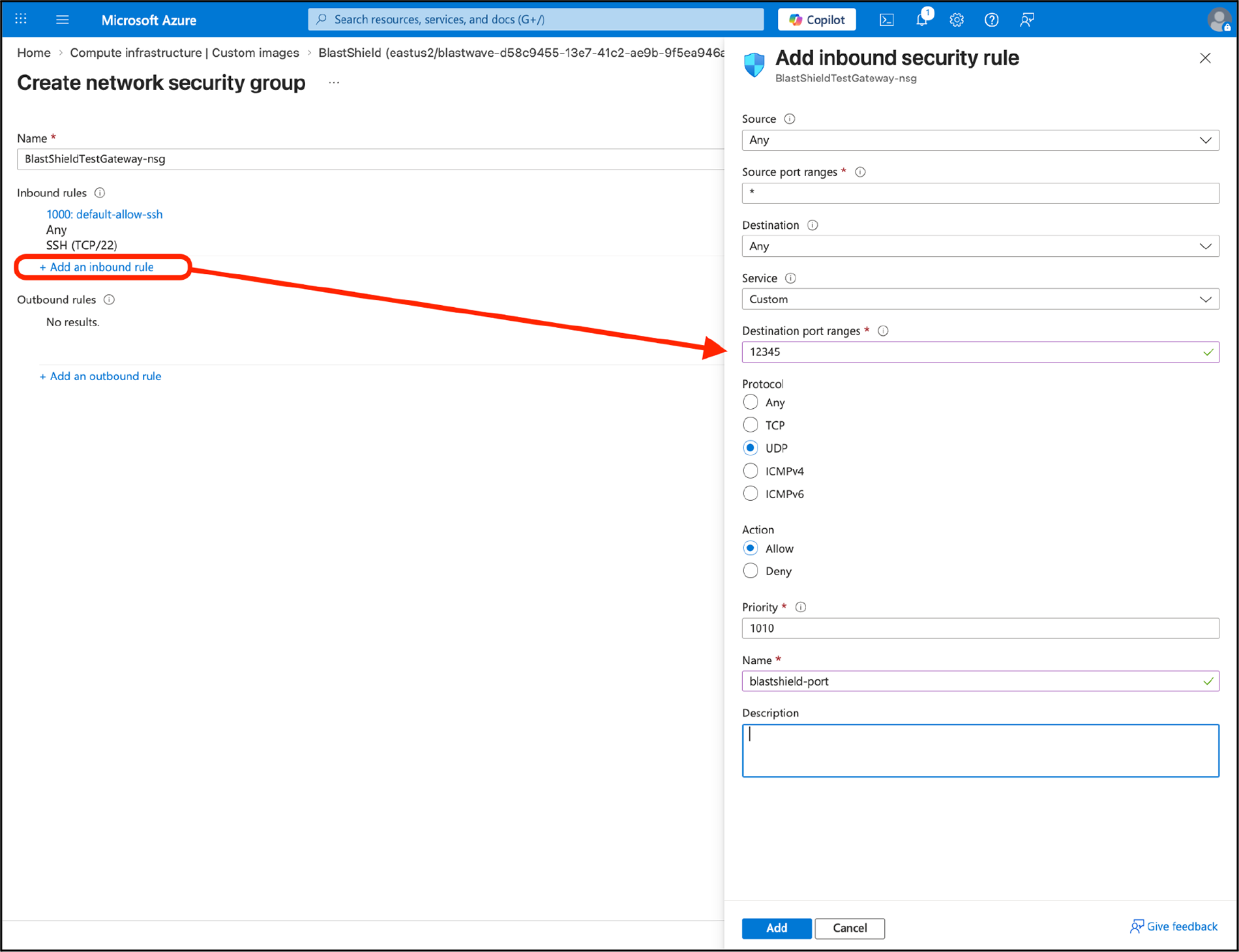
In the networking tab, switch the “NIC Security Group” option to “Advanced” and then click “Create new” under “Configure network security group”. Add a new inbound security rule for UDP/12345, name it “blastshield.”
Create BlastShield Invitation
-
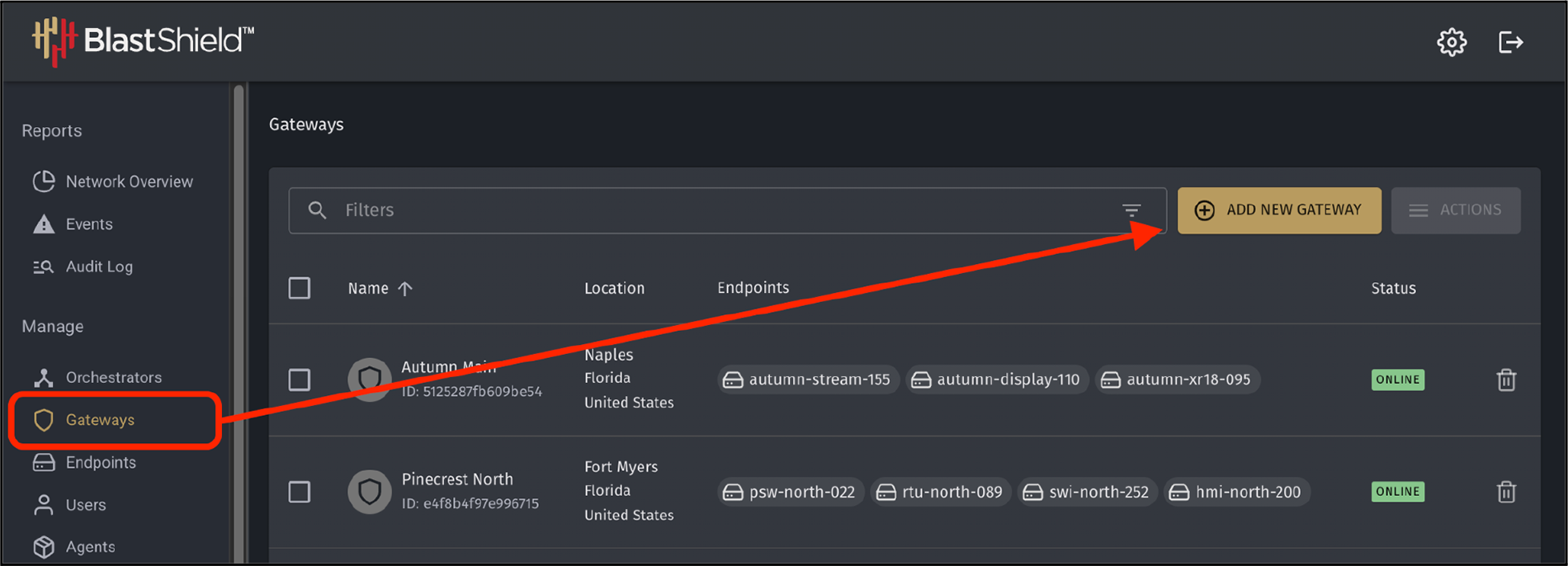
Log into the BlastShield Orchestrator. Under Gateways, create a new BlastShield Gateway.
-
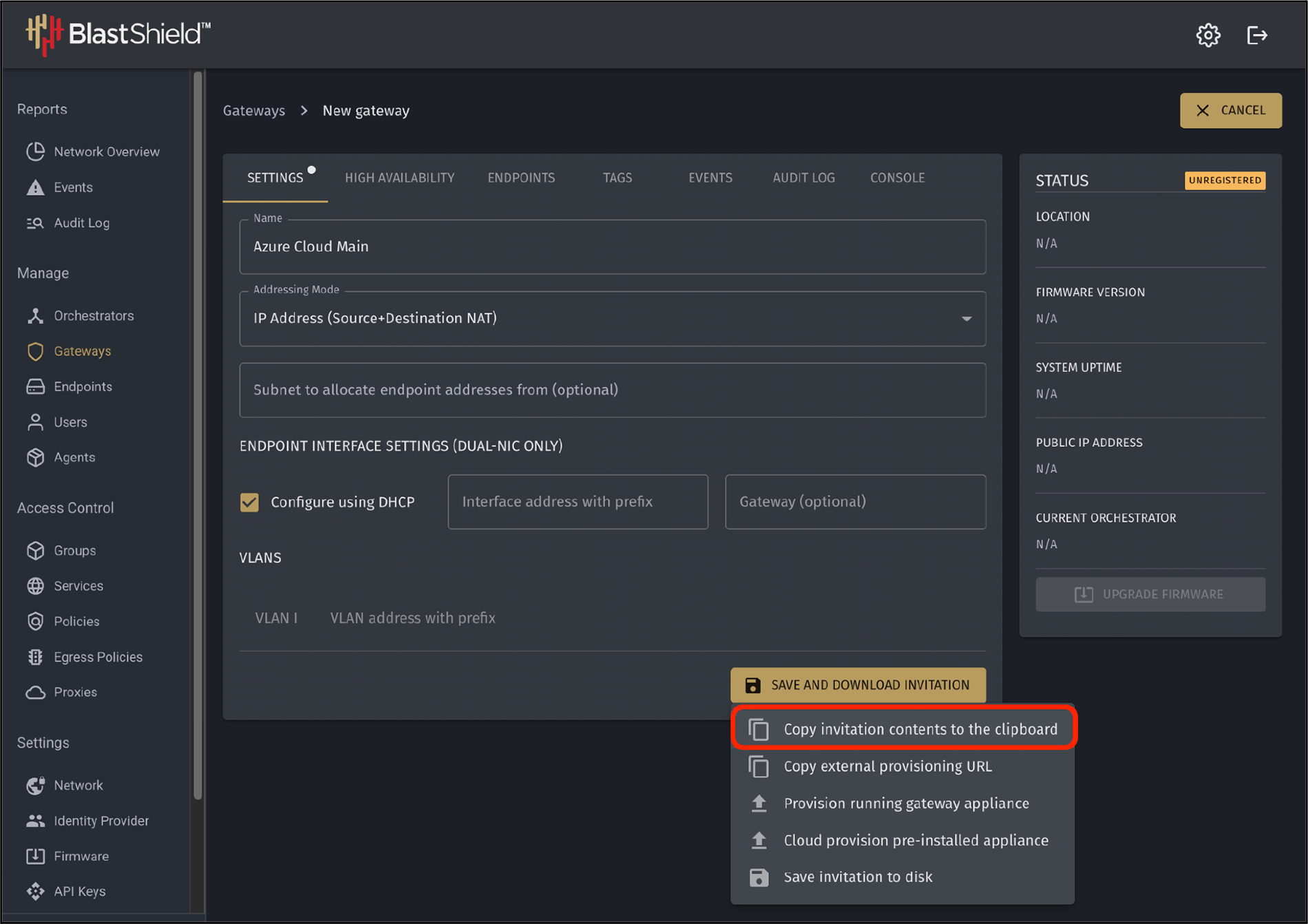
Create a BlastShield invitation for the gateway. At Save and Download Invitation, select “Copy invitation contents to the clipboard.”
Finalize Azure VM Creation
-
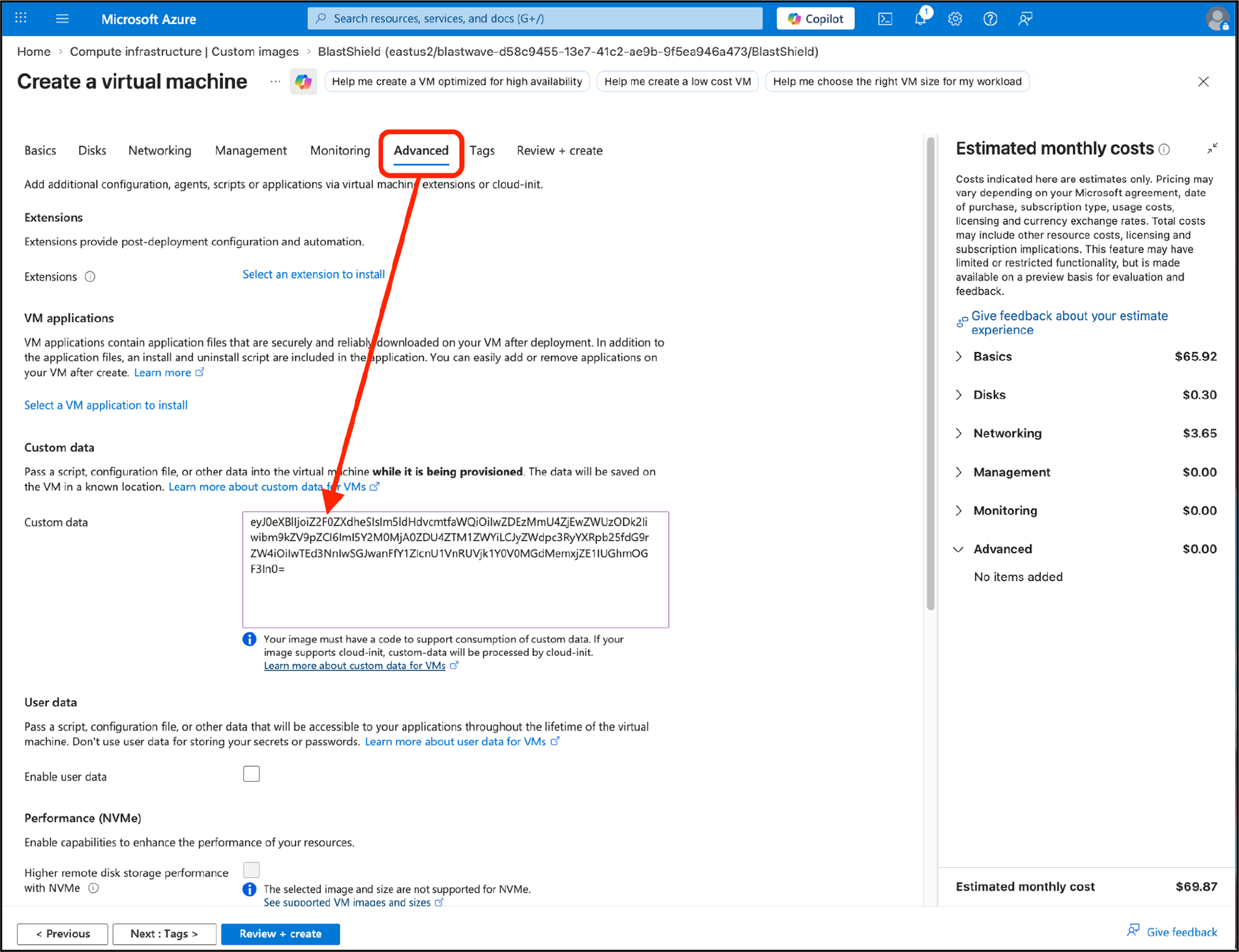
Paste the invitation contents as “Custom data” under the Advanced tab.
-
Click “Review+Create” at the bottom of the screen to create the VM.

-
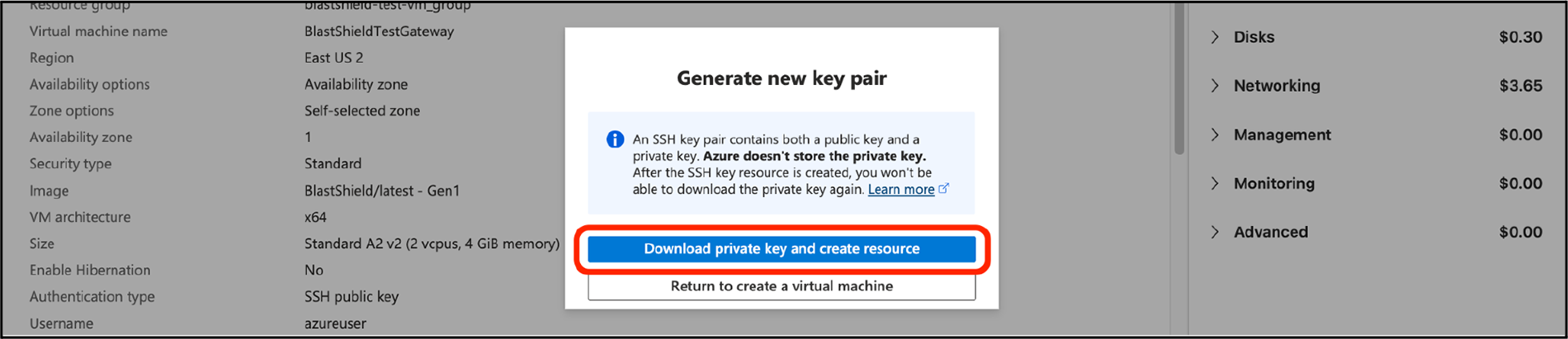
Click “Download private key and create resource.” Any downloaded SSH key can be discarded. It will not be needed.
-
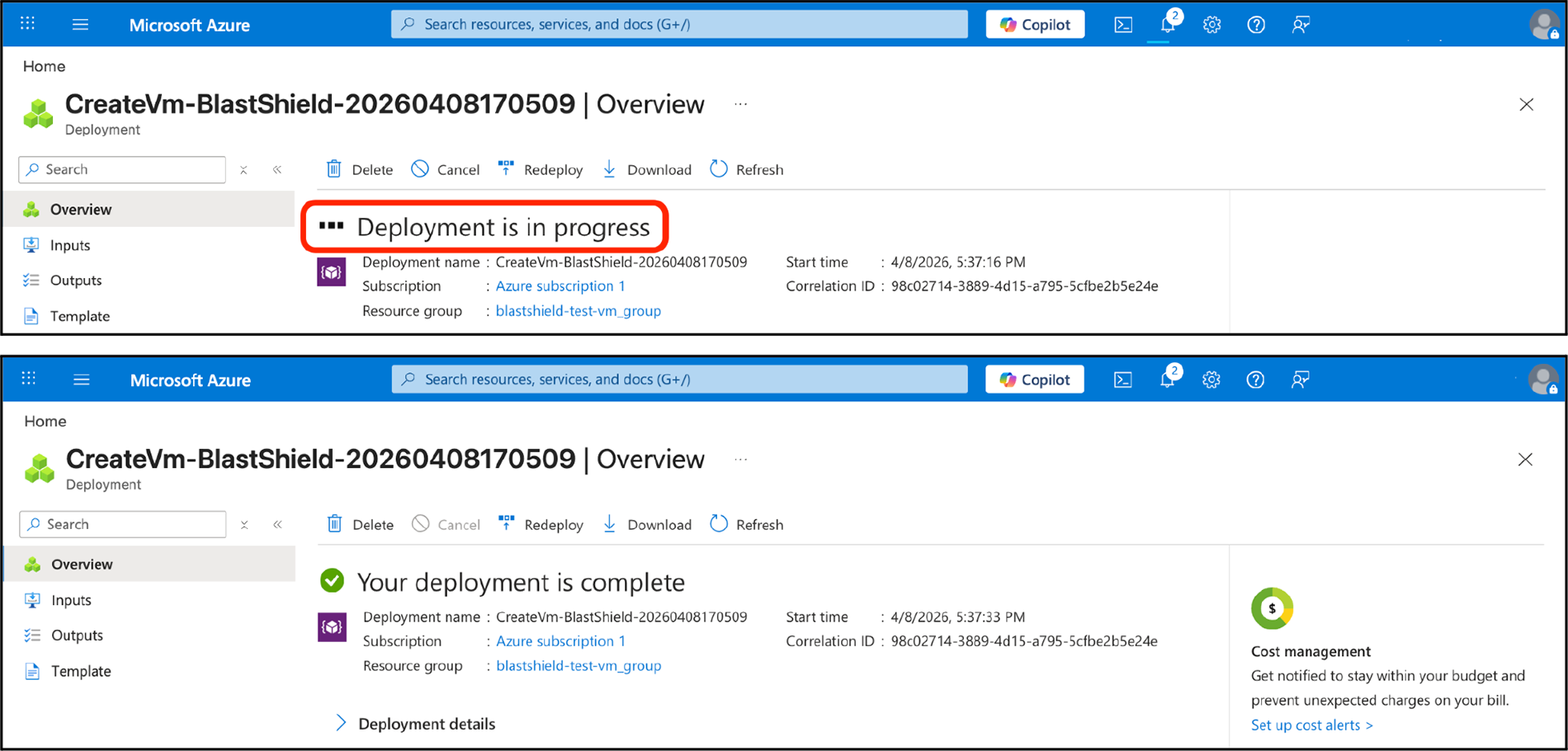
Azure will deploy the VM. You should see a Deployment in Progress notification followed by the Deployment Complete.
Update BlastShield Firmware
-
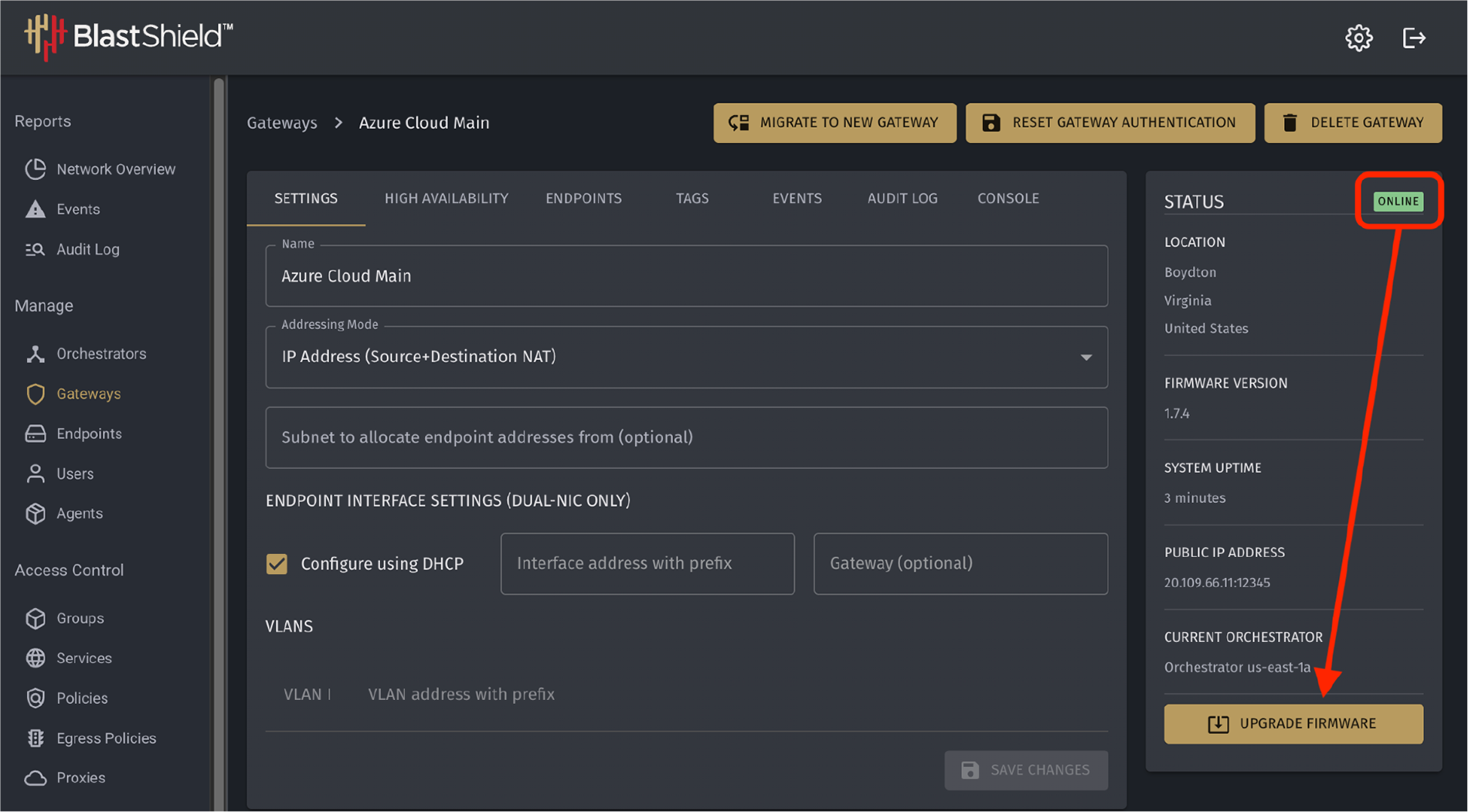
Wait for the gateway to appear as “Online” in the BlastShield orchestrator. This may take a few minutes. Once the green badge appears, click the Upgrade Firmware button. The Gateway will briefly go “OFFLINE” and then return with the same firmware version as the Orchestrator.
Finish Implementation
-
The Gateway is now ready to use in your BlastShield network. Please visit http://support.blastwave.com for more information on configuring Endpoints, Groups, and Policies.