
|
Tip |
|---|
|
Once BlastWave has setup your account for you, you will be sent a registration link. You will need this registration link in the following steps. |
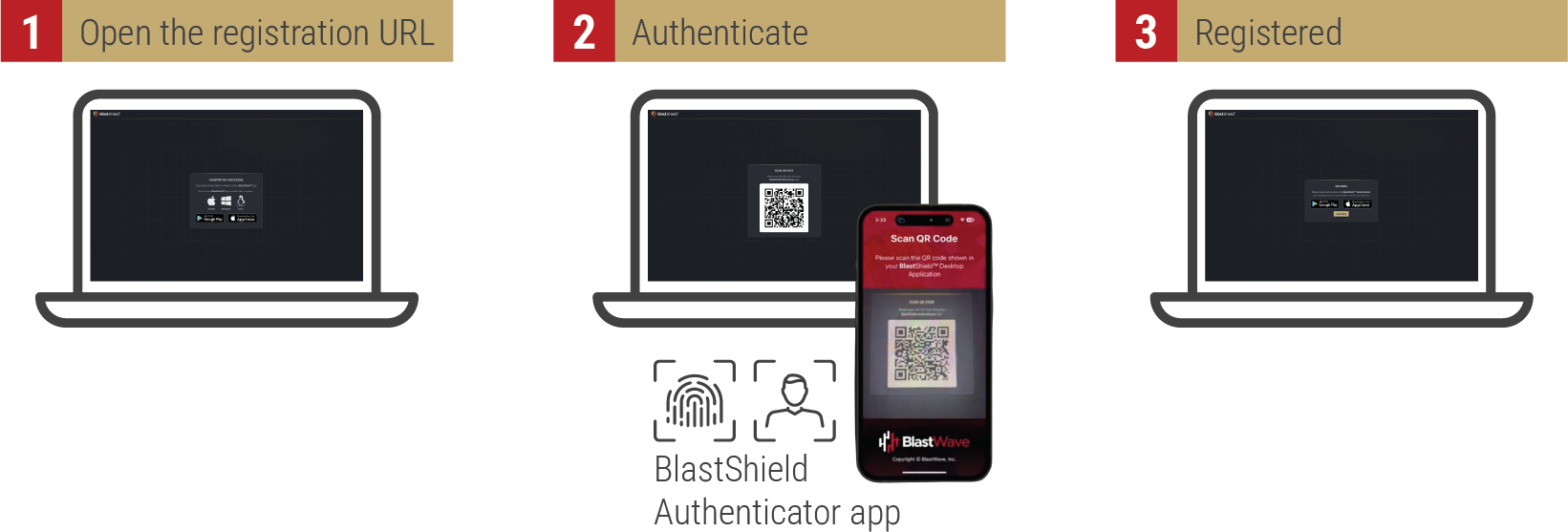
Registration is a simple process which requires you to scan your registration link with the BlastShield Mobile Authenticator app:
|
Tip |
|---|
|
Before you start, make sure you have installed the BlastShield™ Mobile Authenticator app on your mobile device (you can download the Mobile Authenticator here). |
To learn how to connect to BlastShield™ for the first time and register, watch the following video or read the steps below.
-
Open the registration URL in a web browser on your desktop.
-
You will see a reminder that you must have the BlastShield™ Authenticator app installed on your mobile device (the App Store links are displayed).
-
In your desktop browser click Continue.
-
A one-time use QR code will be displayed in your browser.
-
Scan the QR code with the BlastShield™ Authenticator app on your mobile device.
-
You will then be prompted to complete the registration on the Mobile Authenticator app.
-
In the BlastShield Authenticator app, click Continue and select the network name.
-
Click Continue to finish.
-
Now you are registered, you should install the BlastShield™ Desktop Client on your workstation if you have not done so already, so that you can connect to the BlastShield™ network. You can download the Client here.
|
Note |
|---|
|
User identification in the BlastShield™ network is based on public-private keypairs. All network users identify themselves using a combination of a randomized 64-bit node identifier and a 256-bit elliptic curve keypair. A public-private keypair is generated when a new user registers with the BlastShield™ network. When you register as a new BlastShield™ user using the Mobile Authenticator app, your private key is created on your mobile device and stored in it's secure enclave. |