
The Orchestrator's Migrate to New Gateway function copies the settings and endpoints of an existing Gateway to a replacement Gateway. Use it to replace a Gateway without rebuilding its configuration. The existing Gateway is deleted when the copy finishes, so a migration is a move, not a copy.
Applies to: BlastShield Orchestrator 1.14.4
Before you begin
-
The replacement Gateway must be online in the Orchestrator.
-
The replacement Gateway’s endpoint interface must be set up the same way as the existing Gateway's before you migrate. For example, if the existing Gateway's second interface is the endpoint interface and uses DHCP, configure the replacement Gateway's second interface to match. The migration can finish without this, but the endpoints are not reachable until that interface is online.
-
The replacement Gateway must be able to reach the existing Gateway's endpoints. You do not need to add the endpoints to the replacement Gateway first. They are copied.
-
Plan for the existing Gateway to be gone afterward. Confirm the replacement Gateway is healthy and its network can reach every endpoint before you start.
Migrate a Gateway
-
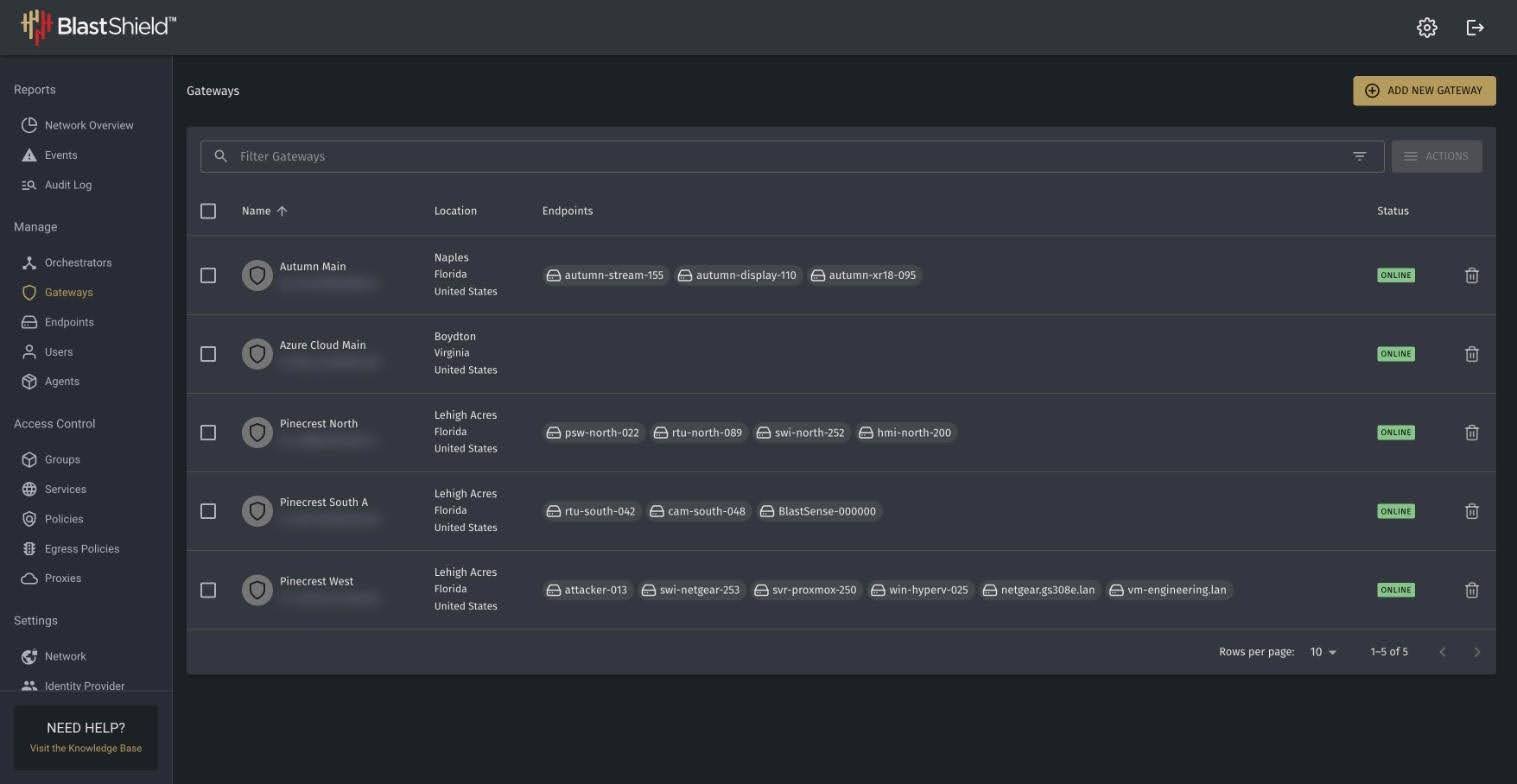
In the Orchestrator, open Gateways and confirm that the replacement Gateway shows as online.
-
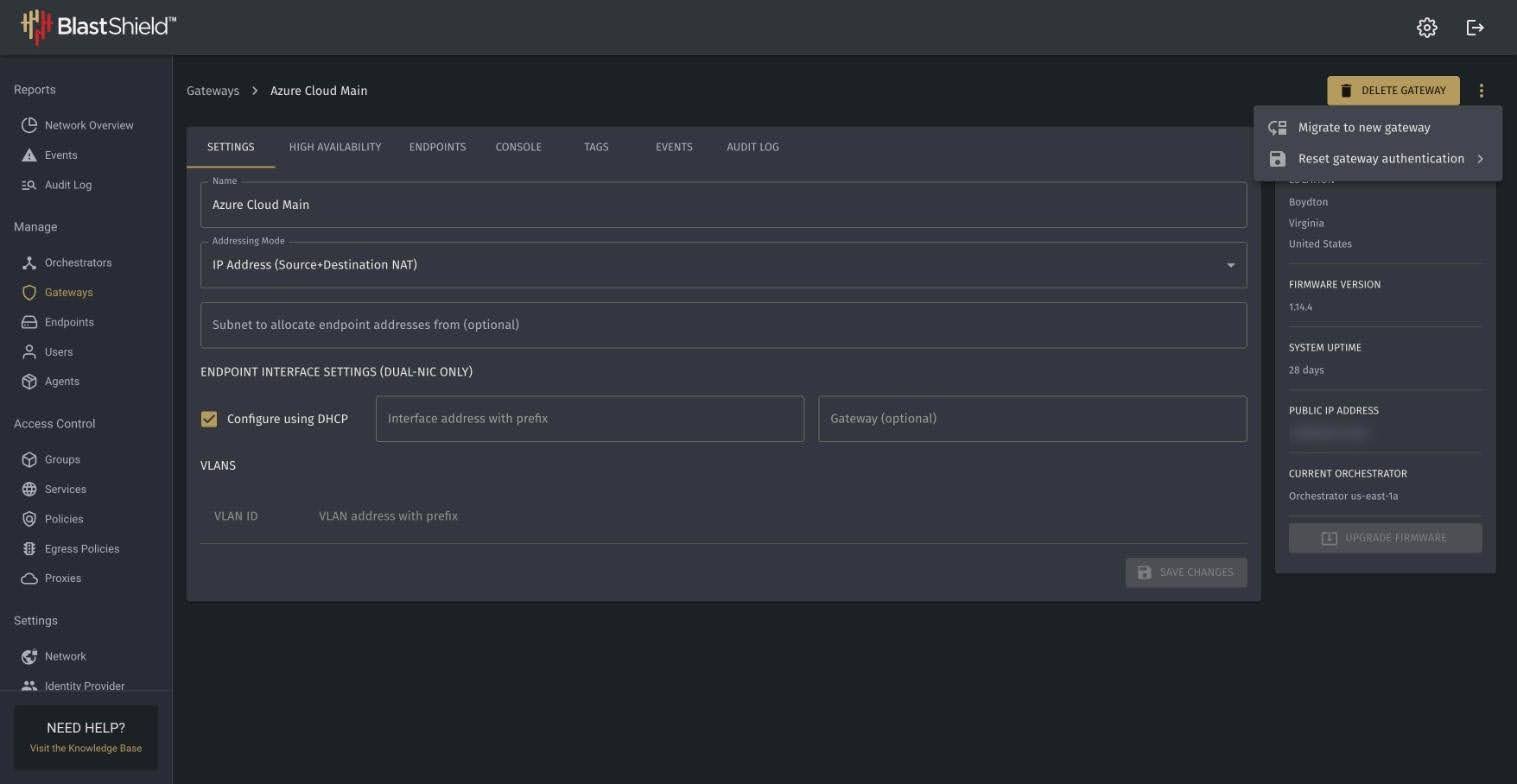
Select the existing Gateway to open its Settings window.
-
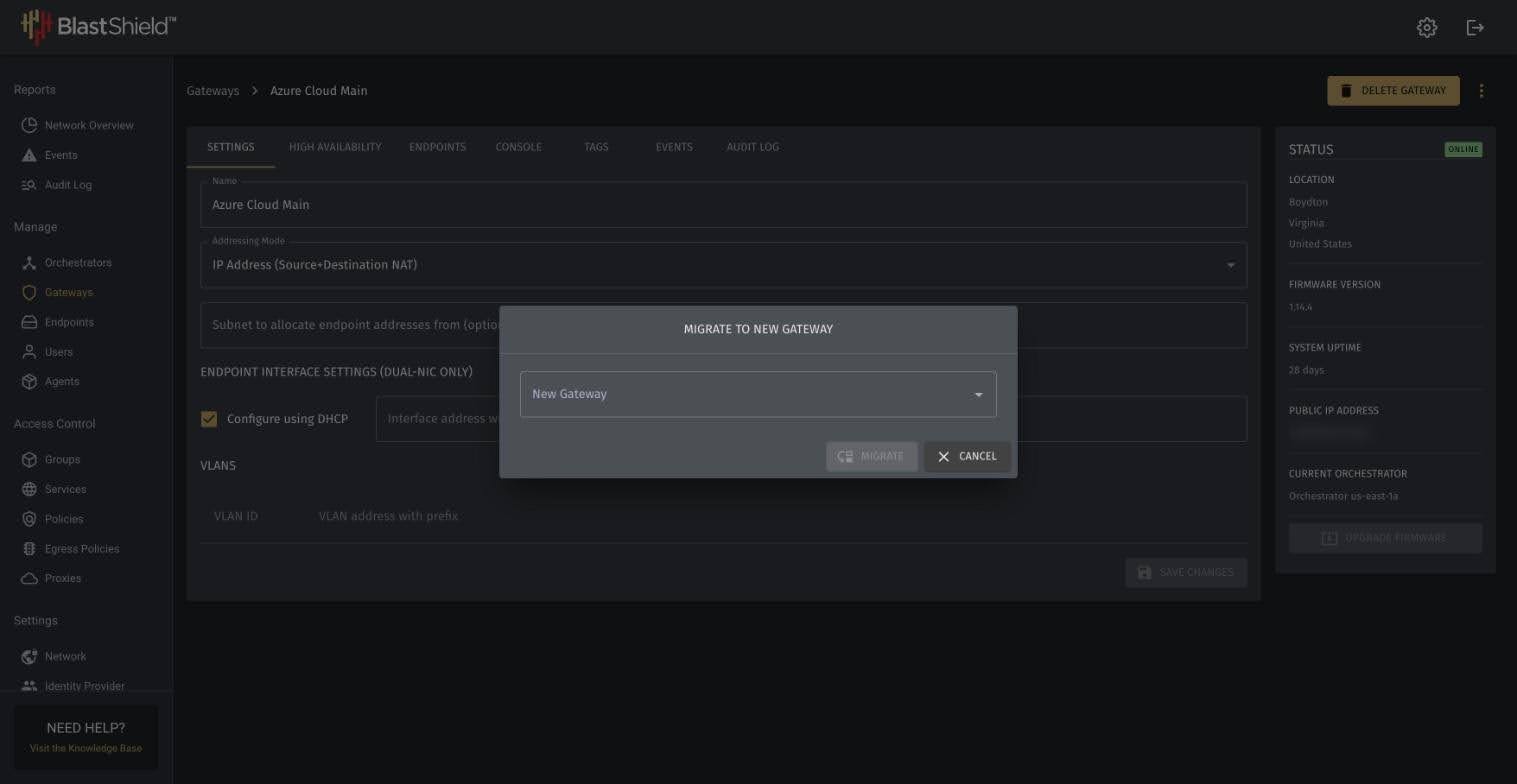
At the top right, open the three-dot menu and select Migrate to new gateway. A Migrate to New Gateway window opens.
-
In the New Gateway list, select the replacement Gateway. The Migrate button is unavailable until you choose one. Click Migrate.
-
Read the confirmation window. It states that settings and endpoints will be copied to the replacement Gateway. Click Yes.
The Orchestrator copies the settings and endpoints to the replacement Gateway and deletes the existing Gateway.
Verify the migration
-
Open the replacement Gateway in the Orchestrator and check that its settings match what the existing Gateway had.
-
Open its endpoints and check that each one is present and reachable. If they are not, check that the replacement Gateway's endpoint interface is configured and online.
-
Confirm that users can still reach the endpoints.
If the migrate option is not available
-
Check that the replacement Gateway is online. A Gateway that is offline cannot be a replacement Gateway.
-
Check that the replacement Gateway's network can reach the endpoints. The copy needs it. Also check that its endpoint interface is set up like the existing Gateway's and is online.