
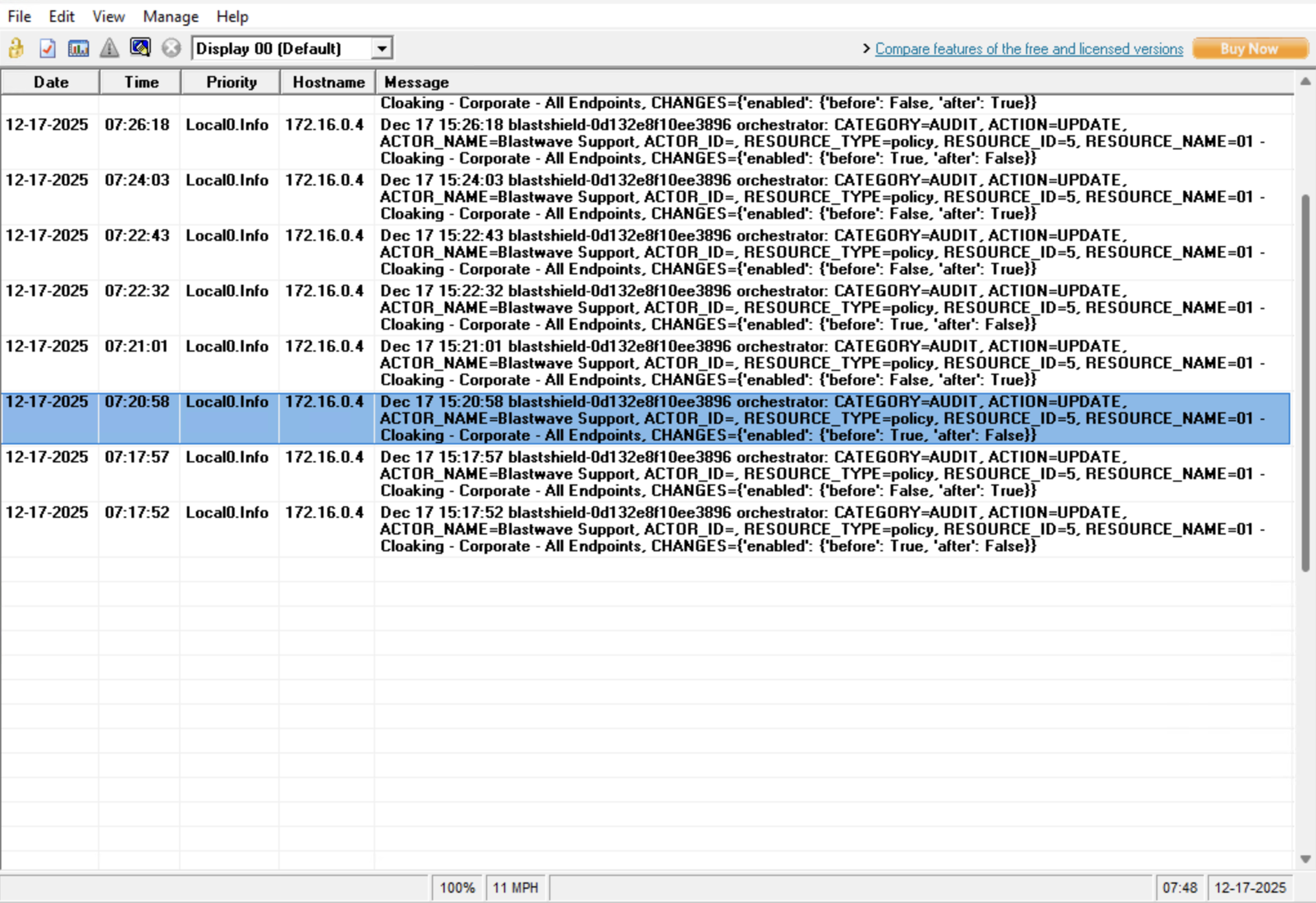
Follow these steps to configure BlastShield Syslog functionality. Syslog can be useful for incident analysis and troubleshooting. It may be required in certain industries or organizations for compliance purposes. Please review these articles for any additional questions:
BlastShield Syslog is compatible with IETF documents RFC 3164 and (most, if not all of) 5424. RFC3164 describes syslog messages in traditional implementations. RFC 3164 is not a standard but rather a descriptive (“informational” in IETF terms) document. It does not demand a specific behavior but rather documents what has been seen.
RFC5424, however, specifies an Internet standards track protocol for the Internet community, and requests discussion and suggestions for improvements. Please refer to the current edition of the "Internet Official Protocol Standards" (STD 1) for the standardization state and status of this protocol.
The following steps may be completed in almost any order.
Create Syslog System
Many organizations using Windows for syslog will deploy the simple Kiwi Syslog Server from SolarWinds. This software is affordable, performs well, and offers sufficient functionality to deliver immediate benefits to the organization.
This guide will use Kiwi Free (capable of receiving syslog from up to five sources, which will be enough for even a High Availability Orchestrator Team). Other Windows-based syslog services will likely require similar configuration.
The biggest decision in creating a syslog system will center on placement. Will the syslog server reside behind a BlastShield Gateway or elsewhere (outside/external)?
-
If inside, configure the syslog server as an Endpoint from the appropriate Gateway.
-
If outside, install the BlastShield Agent software on the syslog server.
Verify the intended Syslog Server appears online to the Orchestrator!
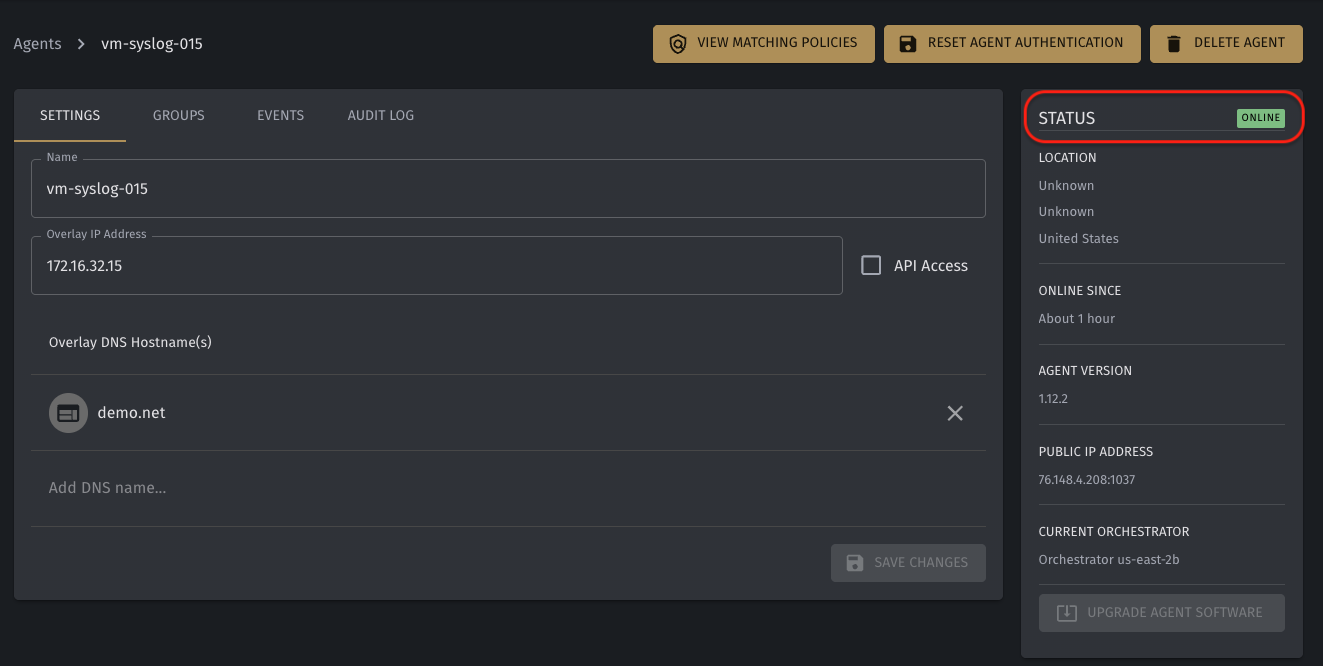
While syslog may be configured across the Internet, firewall rules and other considerations must be made that would ultimately lead to a lower security posture on the entire system.
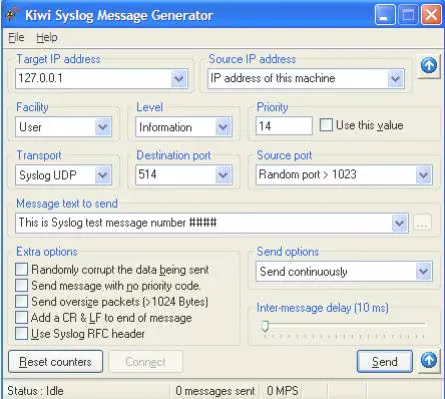
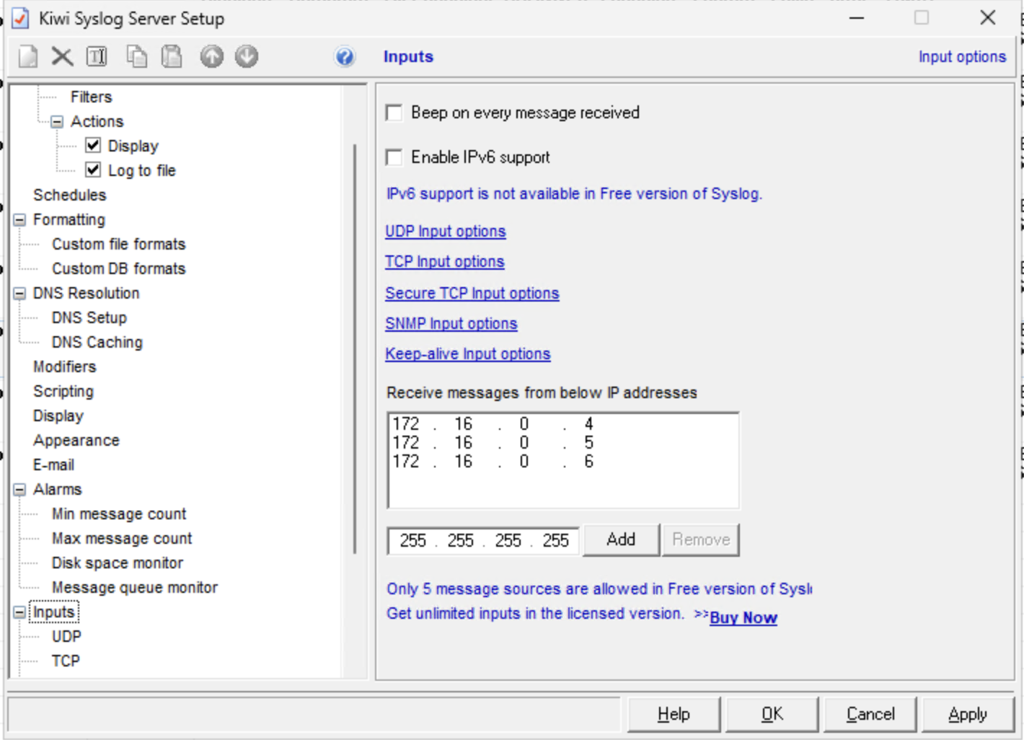
Install and test the syslog service of choice. One way to test the syslog functionality is via the Kiwi Syslog Message Generator tool. Remember that your local host (127.0.0.1) may need to be added to the authorized source list for the generator tool to work.
Configure Target Firewall
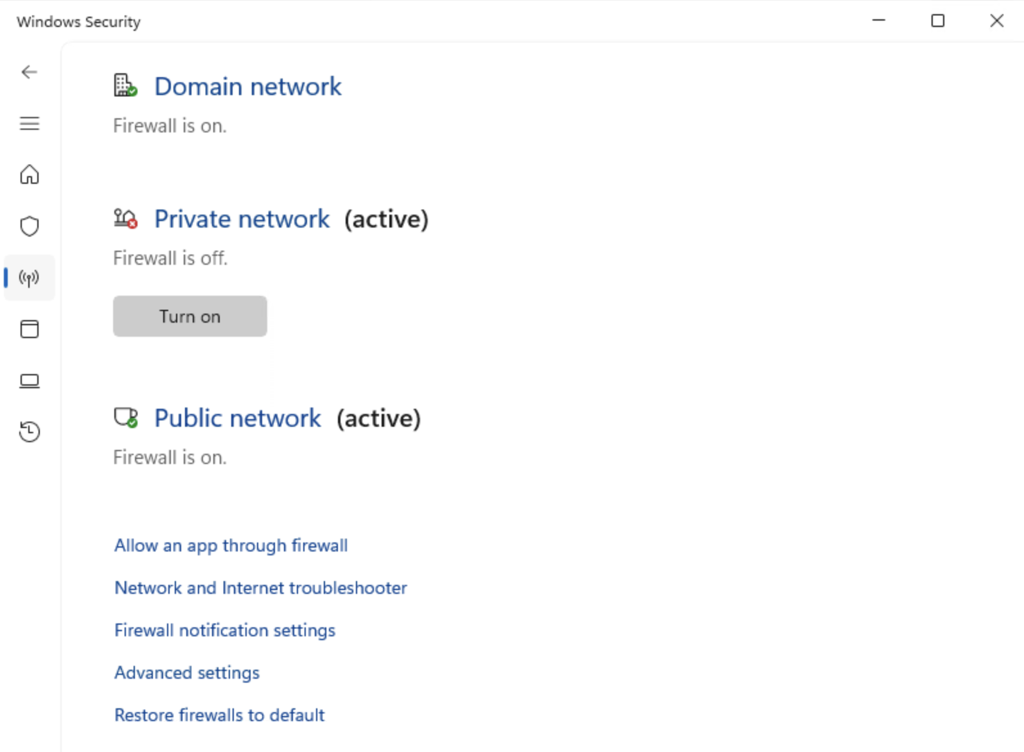
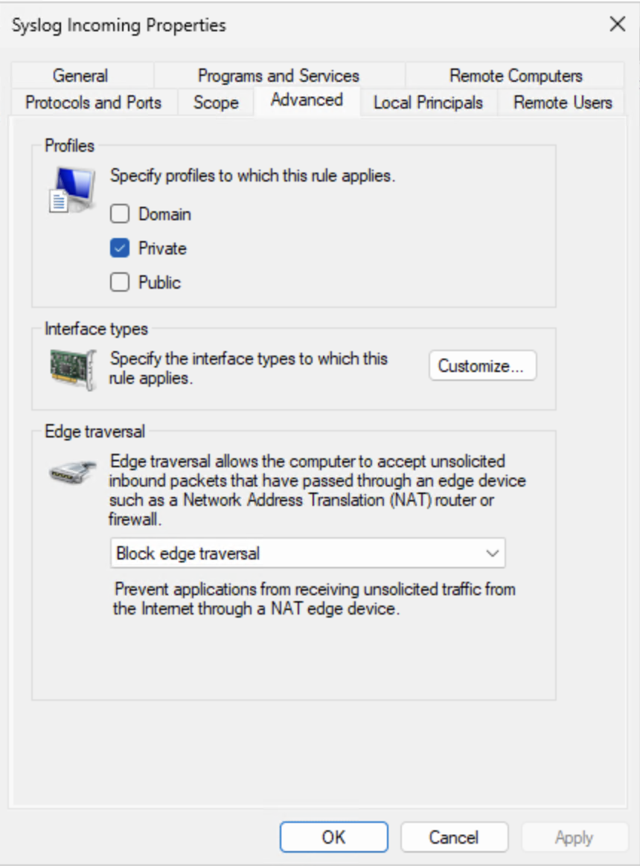
Windows Defender will not allow syslog messages to arrive at the syslog service without adjustment to the local host-based firewall. Please do not disable all three realms of the Defender firewall. While this will allow communications, it leaves the host completely open to all transmission on the network.
While also functional, the Private Network realm may be disabled (see below). This is NOT recommended. A better solution will be to create a custom input rule.
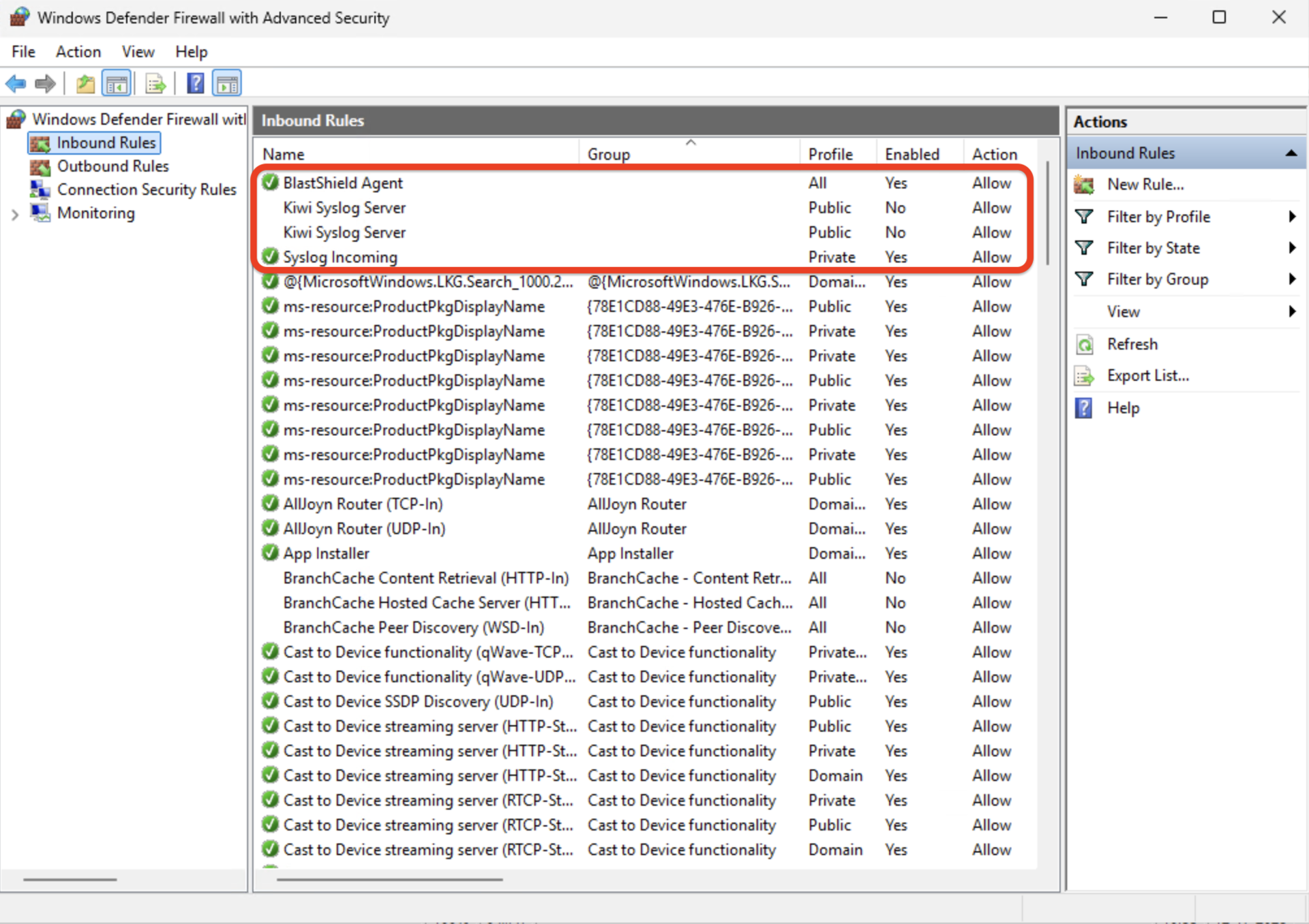
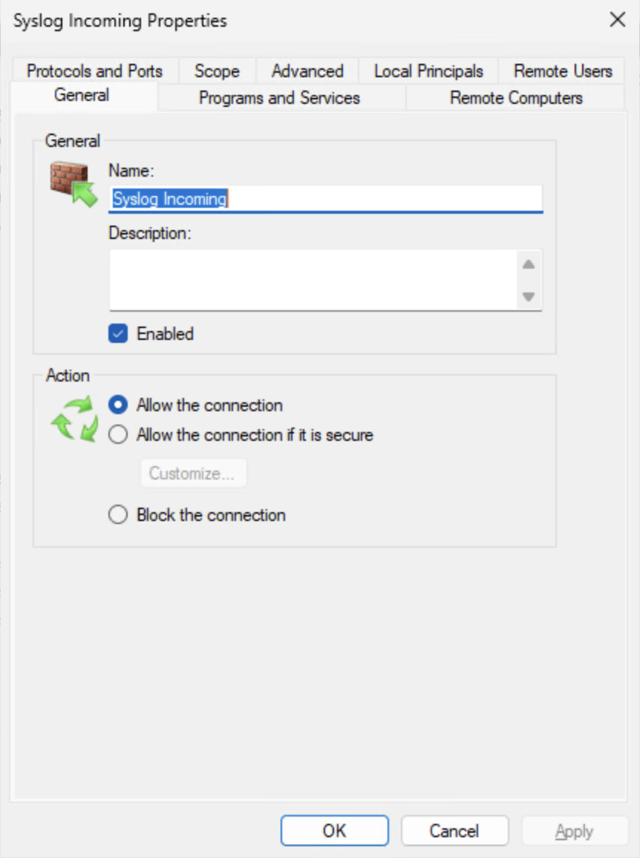
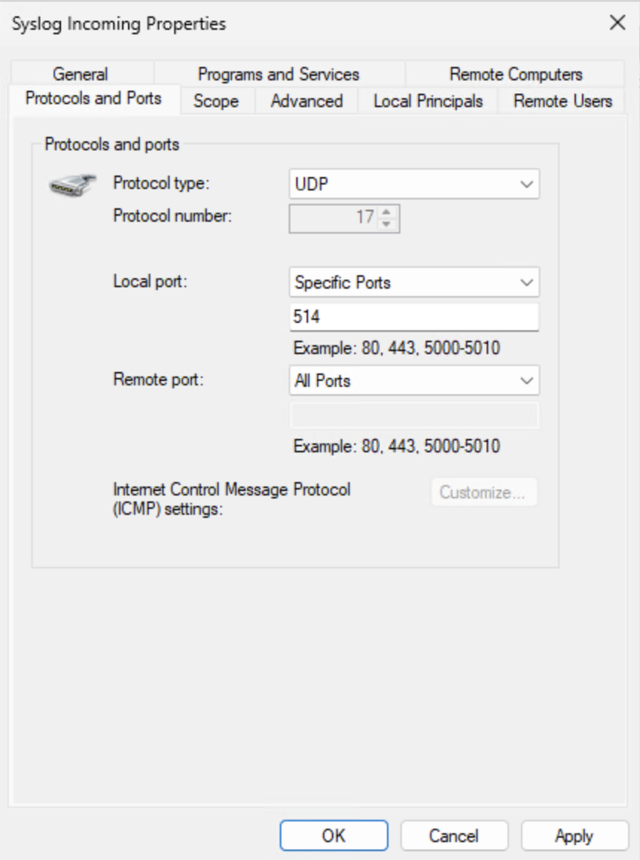
Open the Windows Defender Firewall MMC and create an inbound rule. The rule (see images) should allow inbound connections, on UDP/514, and apply to the Private realm. Remove or disable the default Kiwi Syslog Server rules applied to the Public realm.
Update Orchestrator Firmware
Before adding syslog, please follow this firmware update procedure to achieve the best results. Ideally, at a time during the day when the Orchestrator sees the lowest user logon activity, update the Orchestrator Firmware:
-
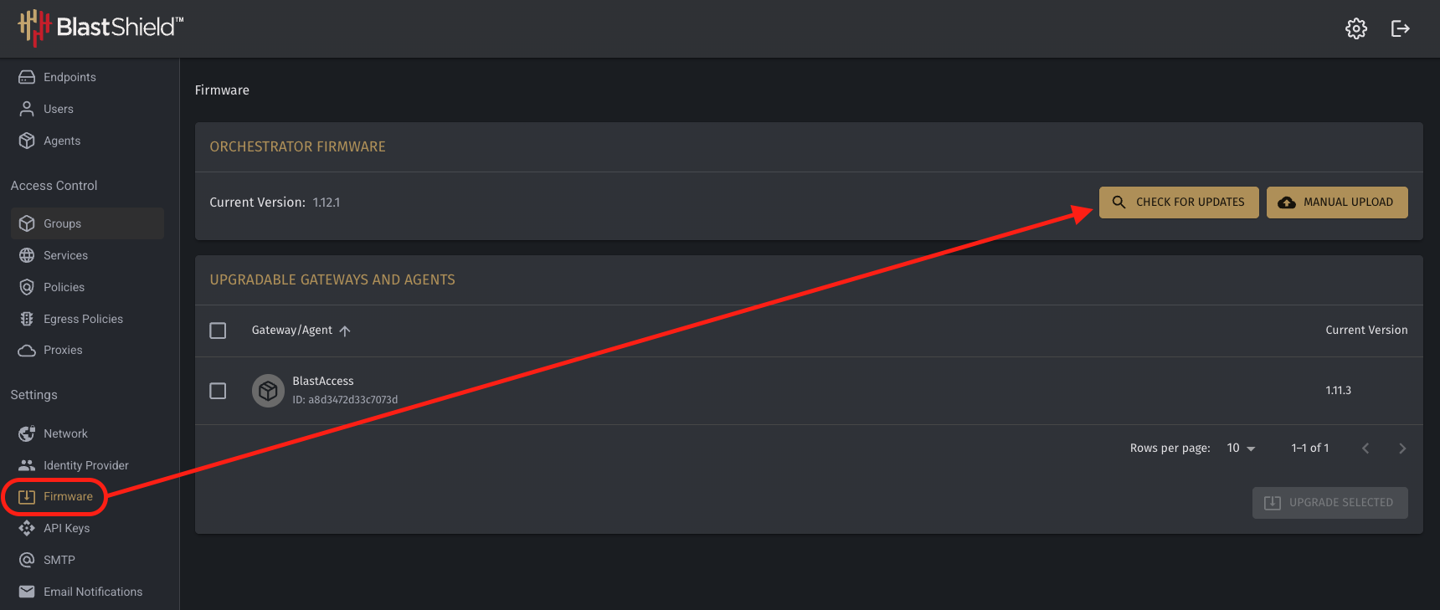
If your Orchestrator is in the cloud or is Internet-connected, perform a search for new firmware revisions from the Orchestrator UI, by clicking Firmware in the left-hand menu pane and the clicking Check for Updates. Once the new firmware (if any) is downloaded, click Update Firmware. The Orchestrator will begin its update process. If only one Orchestrator is configured, it will return in usually less than one minute. If your Orchestrator is teamed in a High-Availability Team, the process will take 5 to 10 minutes to complete (wait until all locks are removed from the Orchestrator team before continuing).
-
If your Orchestrator is on-premise AND disconnected from the Internet, download the current firmware first (contact support@blastwave.com for any questions). Use a USB drive or some other means to upload the firmware manually. Once uploaded, trigger the update and wait until the process completes.
-
Update any running Agents to the latest firmware version.
Configure Orchestrator
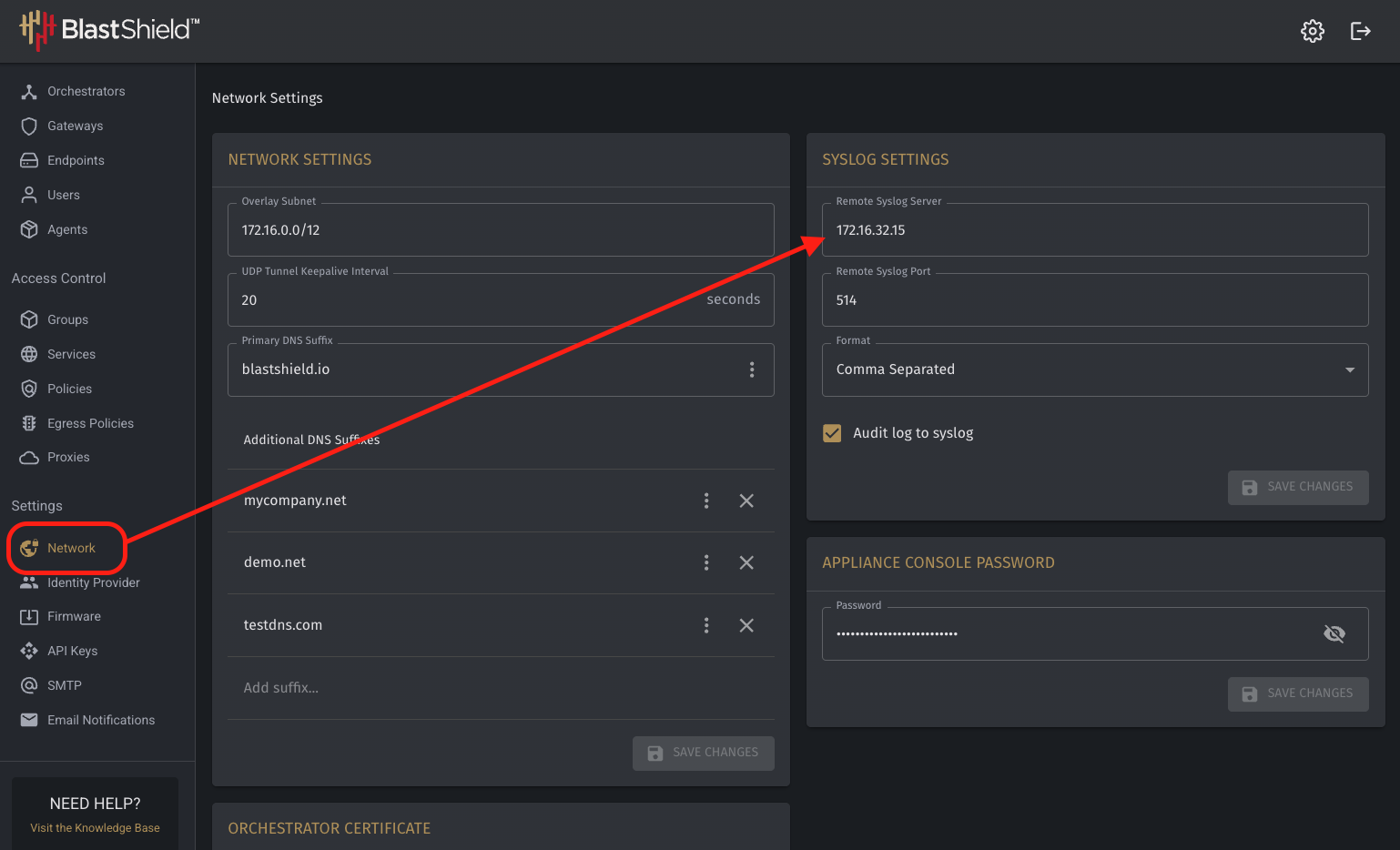
In the Orchestrator, under the Network Menu, add the BlastShield OVERLAY address of the syslog server. Do not use the original or underlay IP address! Comma Separated values and the default port should remain unless a compelling reason exists to change them. It is recommended to include all audit log traffic with syslog (default setting).
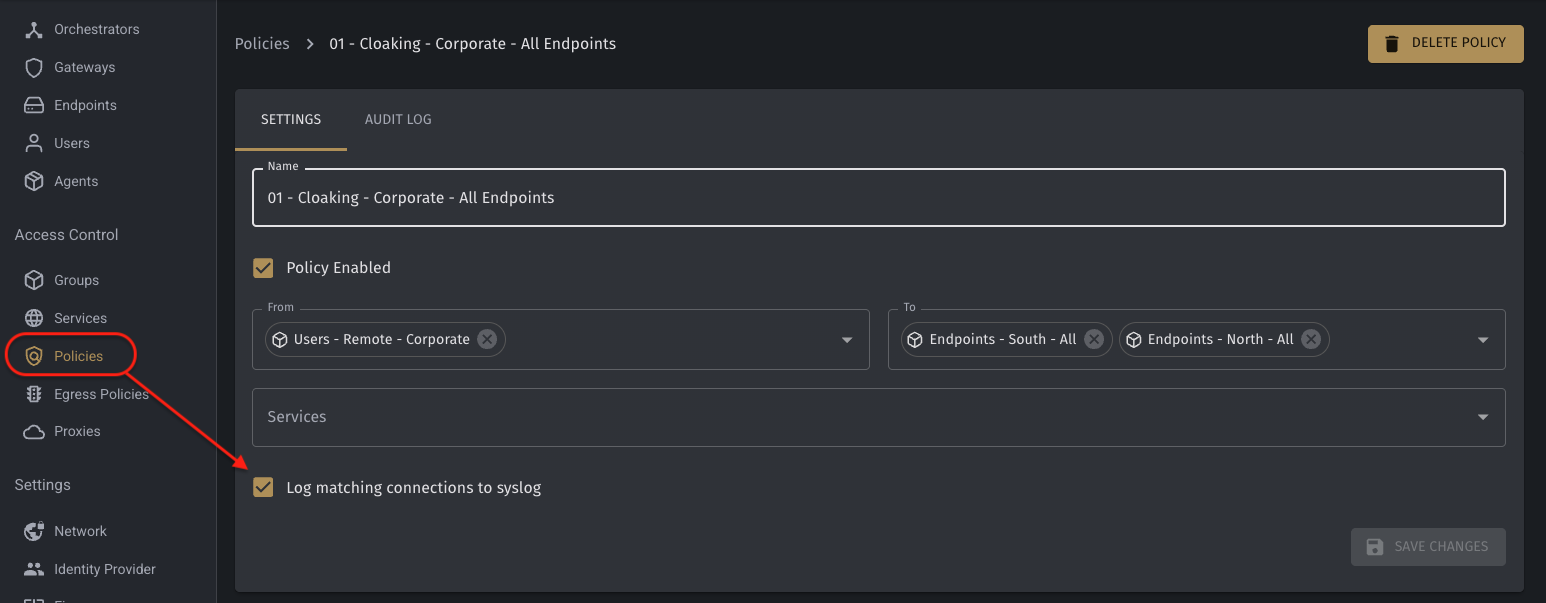
Next, select the desired policies to monitor with syslog. Open each policy and verify that “Log matching connections to syslog” is enabled. Please Note: This is NOT a default!
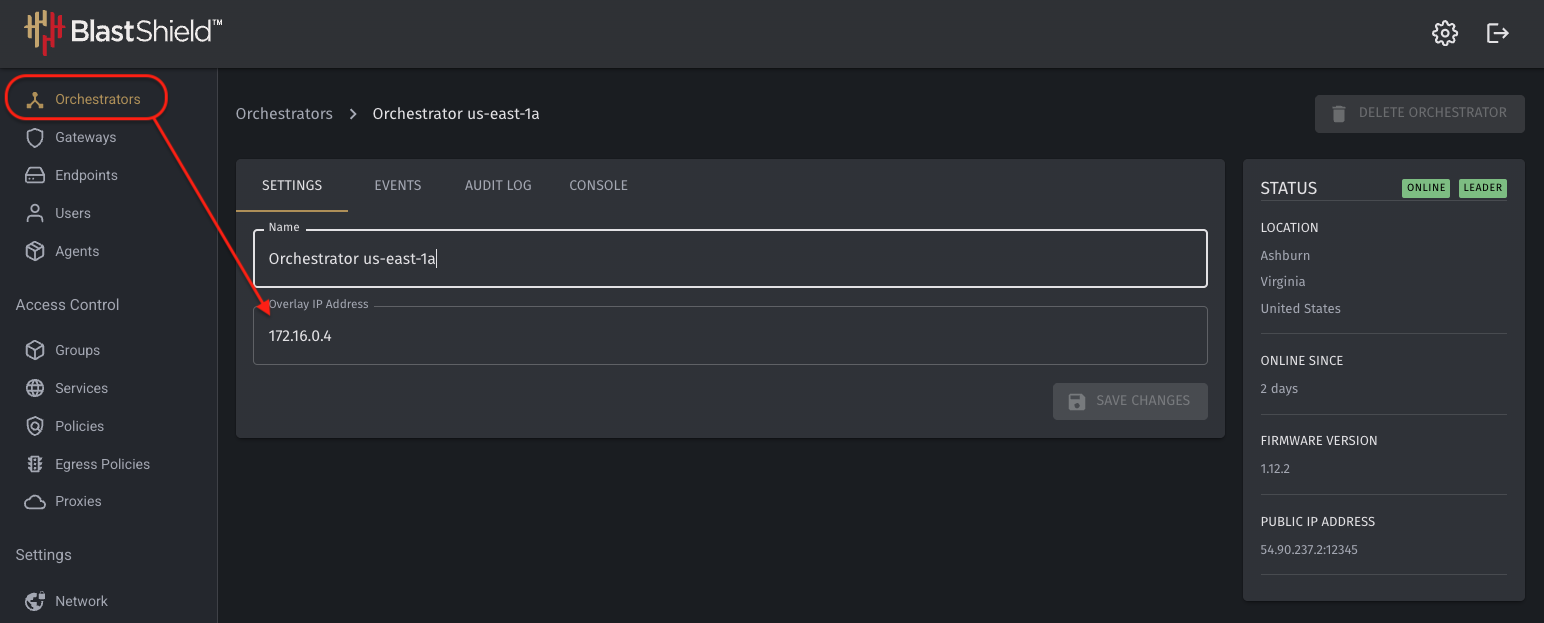
Finally, ensure that you have placed all Orchestrator IP addresses into the Syslog Server’s Allowed Source List (see above). The IP addresses from your Orchestrator(s) may be found in the UI, under Orchestrators. Click each one to view it’s address.
Troubleshooting
As with all troubleshooting, divide and conquer. Make one adjustment at a time and test for any changes. In this case, four things could be happening:
-
No syslog messages sent from Orchestrator: Check the policy settings, Agent/Endpoint settings, and Remote Syslog Address for typos or misconfigurations.
-
No syslog messages through Network/Firewall: From the command line of the Orchestrator (only available with Engineering Access, contact support@blastwave.com for help), run
tcpdump -nlei any port 514and attempt to trigger a message. It should appear in the command line window (see image below).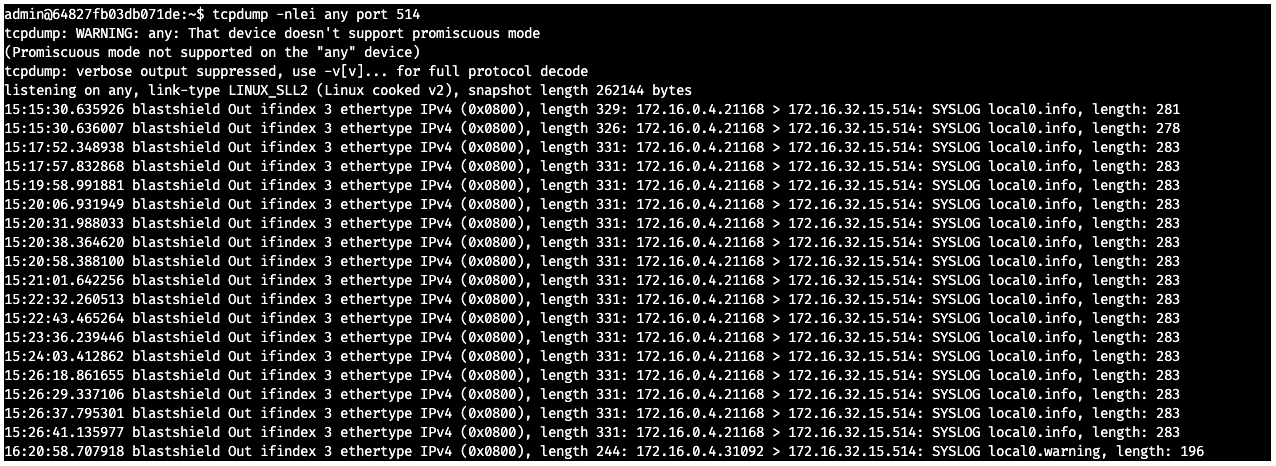
TCPdump Output -
No syslog messages through Windows Firewall: Check Windows Defender Settings to ensure a proper incoming rule has been configured. Test by turning off all Defender Firewall Realms (Domain, Private, and Public) to see if messages arrive.
-
No syslog messages in Syslog Software: Check that all Orchestrator addresses have been properly listed in the allowed sources.