
BlastShield™ Remote User access is highly secure and convenient. In just a few simple steps your remote users are quickly authenticated and connected to the BlastShield™ network of their choice. Below, you will find a brief demonstration of remote access using a FIDO2 Compliant Key.
Remote Access Steps
To learn how to access a BlastShield™ network using a FIDO2 Compliant Key, watch the following video or read the steps below.
-
Ensure your FIDO2 Key is registered and plugged into your laptop or desktop.
-
Open the BlastShield™ Desktop application on your laptop or desktop.
-
Select the "FIDO2 Key" Authentication Method.
-
Enter your secret PIN that was created when you registered your FIDO2 Key.
-
You will be prompted to interact with the .FIDO2 Key to confirm your identity.
|
The Desktop Client must remain running while you are connected |
|---|
|
The BlastShield™ Desktop Client app must remain running while you are connected to the BlastShield™ network. To disconnect, either quit the BlastShield™ Desktop App, or Select Disconnect from the app. |
|
To stay connected when your screen is locked |
|---|
|
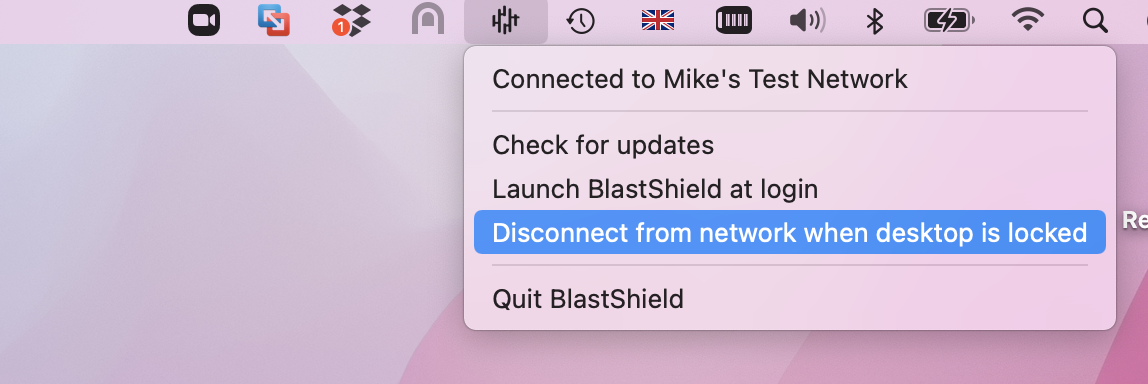
If you would like the BlastShield™ Client to stay connected when your screen is locked then you can configure this in the Client as described below.
|