
Email notification rules decide which Orchestrator events are sent by email. A rule lists conditions and recipients. When an event matches every condition, the Orchestrator sends an email through the SMTP server you configured. This article covers creating, editing and disabling rules.
Applies to: BlastShield Orchestrator 1.14.4
Before you begin
-
Configure SMTP first and confirm the test email arrives. See "Configure SMTP Email Notifications in BlastShield".
-
Decide who should receive the alerts. Rules can use the default recipients from the SMTP settings or their own list.
Open the rules page
-
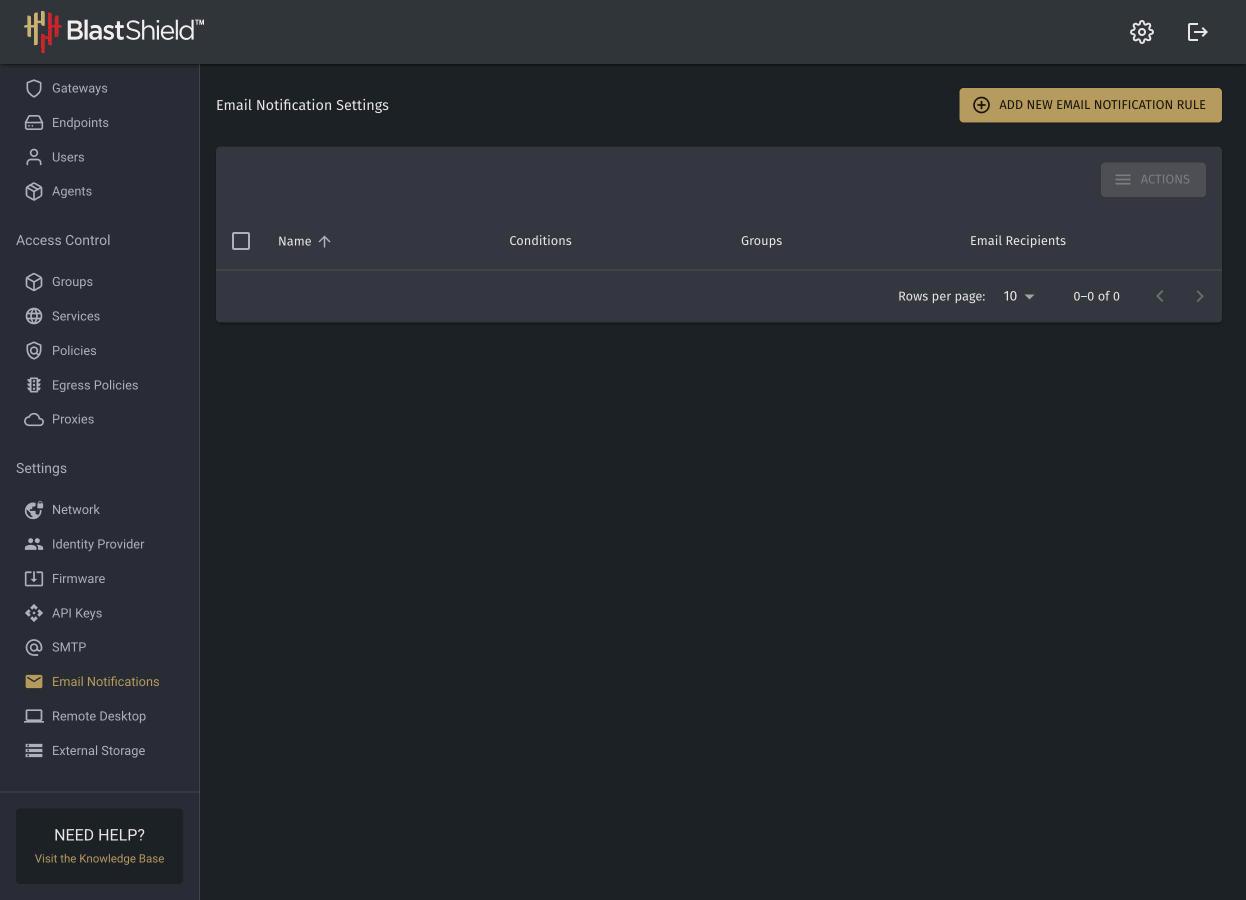
In the Orchestrator, open Settings > Email Notifications.
-
The page lists each rule with its name, conditions, groups and email recipients.
Create a rule
-
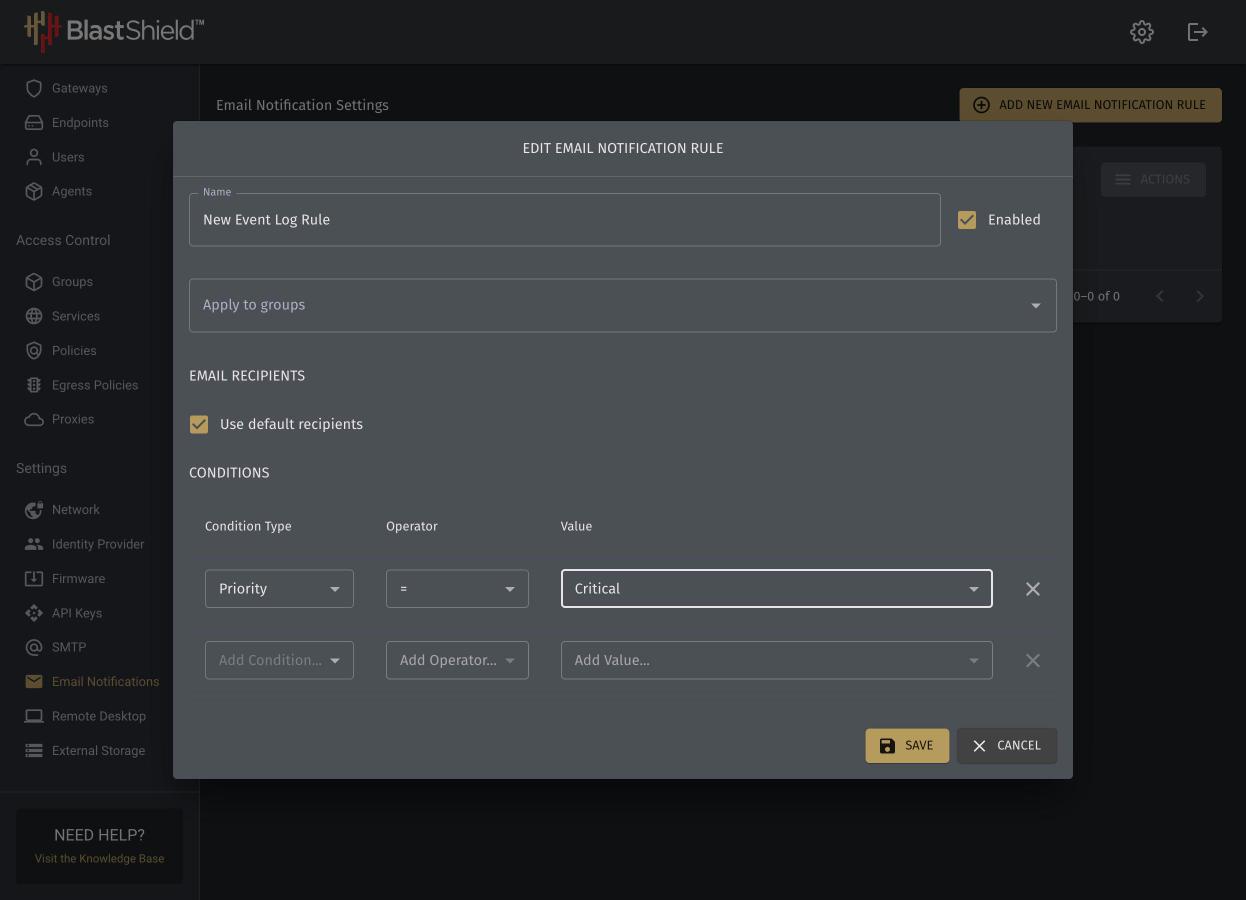
Click Add new email notification rule.
-
Enter a Name that describes what the rule watches for.
-
Leave Enabled checked. To limit the rule to some devices, choose one or more groups in Apply to groups.
-
Under Email Recipients, leave Use default recipients checked to send to the addresses in the SMTP settings. Clear it to enter a list for this rule only.
-
Under Conditions, add one row for each condition. Choose a Condition Type, an Operator and a Value.
-
Click Save.
How conditions combine
-
Different conditions are combined with AND. An event must match every row.
-
Several values in one condition are combined with OR. The condition matches if the event has any of the values.
-
Operators include = (equals) and ≠ (does not equal). The Condition Types are Category, Entity Tag, Event Tag and Priority. The Priority values are Info, Warning, Error and Critical.
-
Category values: Agent, Device, Endpoint, Gateway, Orchestrator and User.
-
Event Tag values: Console, Device Enrollment, DHCP, Firmware, High-Availability, Location, MAC Address, Remote Desktop, Request, SSH, Status and System.
-
Entity Tag takes a Tag Name and a Tag Value that you type.
Example. This rule matches events for Agents, except firmware events.
|
Condition Type |
Operator |
Value |
|---|---|---|
|
Event Tag |
≠ |
Firmware |
|
Category |
= |
Agent |
Example: email when a gateway goes down
To get an email when a gateway goes offline, create a rule with two conditions. Every row is combined with AND, so the event must be a status event and it must come from a gateway.
|
Condition Type |
Operator |
Value |
|---|---|---|
|
Event Tag |
= |
Status |
|
Category |
= |
Gateway |
Name the rule, for example Gateway Down, leave Enabled and Use default recipients checked, and click Save. The rule sends an email for each status event from any gateway, such as a gateway going offline.
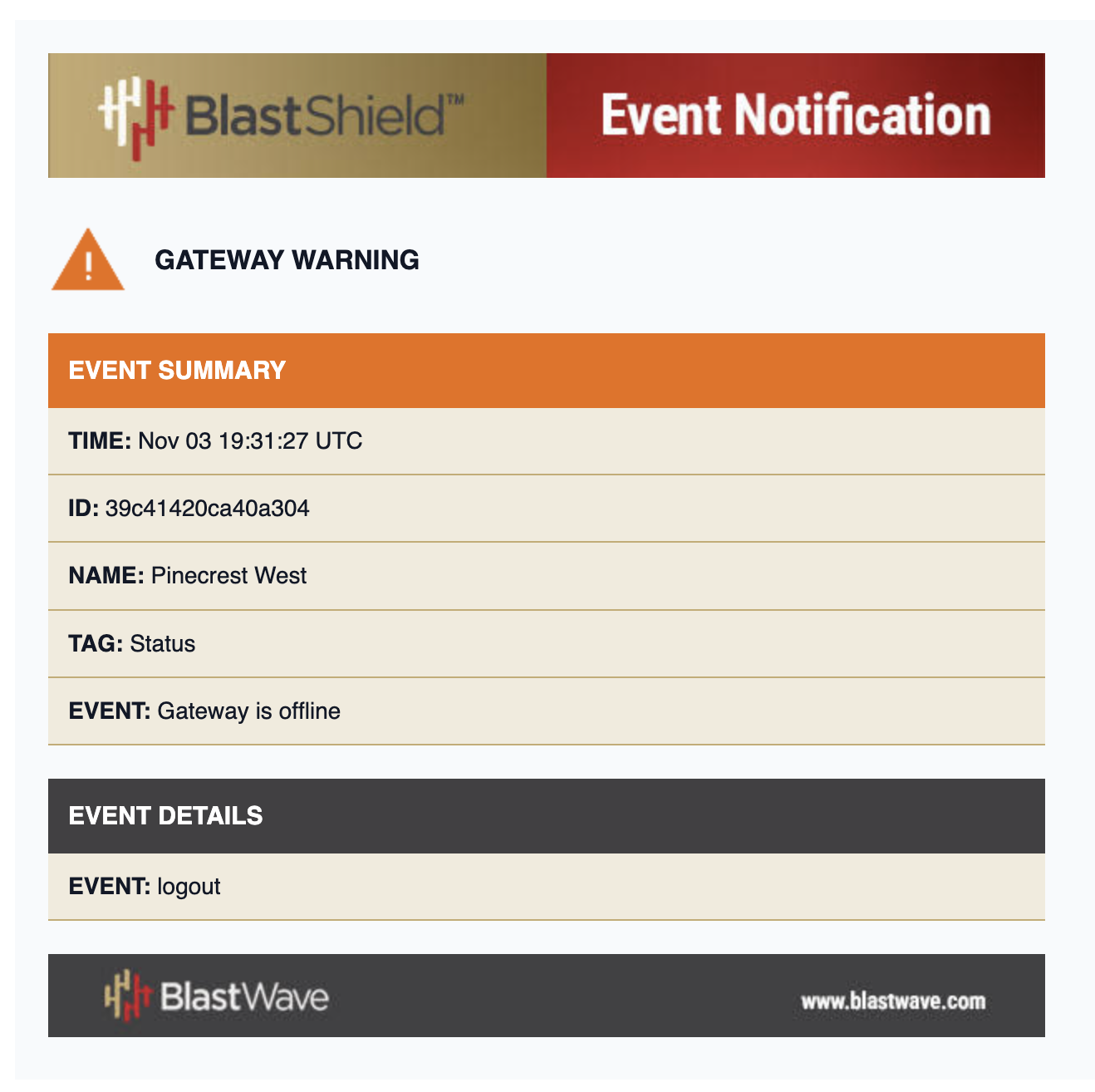
When a gateway goes offline, the Orchestrator sends an Event Notification email with the heading Gateway Warning. The email has two parts.
-
Event Summary: the time of the event in UTC, the gateway ID and name, the tag (Status) and the event text (Gateway is offline).
-
Event Details: the cause of the event, for example logout.
To change what the rule watches:
-
Add a row to narrow the rule. The event must match the new row as well as the existing ones.
-
To limit the rule to some devices, choose one or more groups in Apply to groups.
-
Change the Category value to watch another type of device. The values are Agent, Device, Endpoint, Gateway, Orchestrator and User.
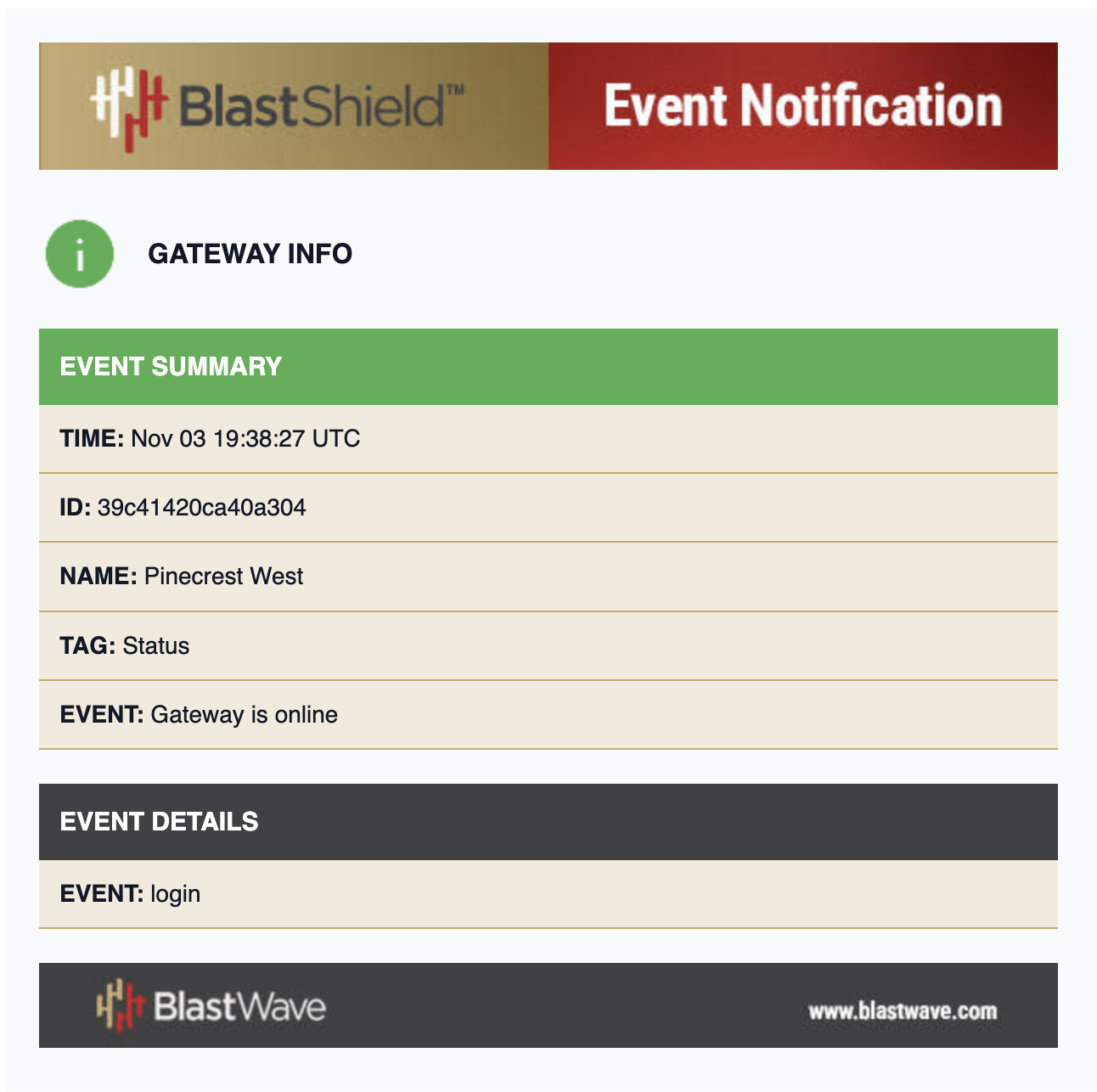
The following examples show emails for a gateway going offline and then returning online a few minutes later.
Edit, disable or delete rules
-
Click a rule to open it and change its name, recipients or conditions. Click Save.
-
To pause a rule without losing it, clear Enabled and save.
-
To act on several rules at once, select them in the list and use the batch action button above the list.
If no email arrives
-
Send a test email from Settings > SMTP. If it fails, fix SMTP first.
-
Check that the rule is enabled.
-
Check the conditions. Because rows are combined with AND, one condition that never matches stops the whole rule.
-
Check the recipients. A rule with Use default recipients checked sends only to the addresses in the SMTP settings.
-
Check the spam folder of the recipient.