
BlastShield Orchestrator sends email alerts through an SMTP server that you configure. This article covers the SMTP settings and uses Google Workspace as the example. Microsoft 365 notes are at the end.
Applies to: BlastShield Orchestrator 1.14.4
Before you begin
-
You need an SMTP account that can send mail. BlastWave recommends a dedicated mailbox for alerts.
-
Google accounts require an app password instead of the normal account password. App passwords require 2-Step Verification.
-
A Google Workspace administrator can disable app passwords. If they are disabled, or the account uses only security keys or Advanced Protection, you cannot create one.
Create a Google app password
-
Sign in to the Google account that will send the alerts.
-
Enter the name BlastShield and create the password.
-
Copy the 16-character password. Google shows it only once.
For more detail, see Sign in with app passwords.
Note: Treat the app password like any other credential. If it is pasted into a chat, ticket, or email, delete it in your Google account and create a new one.
Configure SMTP in the Orchestrator
-
In the Orchestrator, open Settings > SMTP.
-
Enter the values below.
-
Click Save Changes.
|
Field |
Value |
|---|---|
|
SMTP Server |
|
|
Port |
587 |
|
Encryption |
STARTTLS |
|
Enable Authentication |
Checked |
|
Username |
The full sending address, for example alerts@example.com |
|
Password |
The app password |
|
From Name |
BlastShield Alerts |
|
From Address |
The sending address |
|
Default Recipients |
One or more addresses. Type an address and press Enter. |
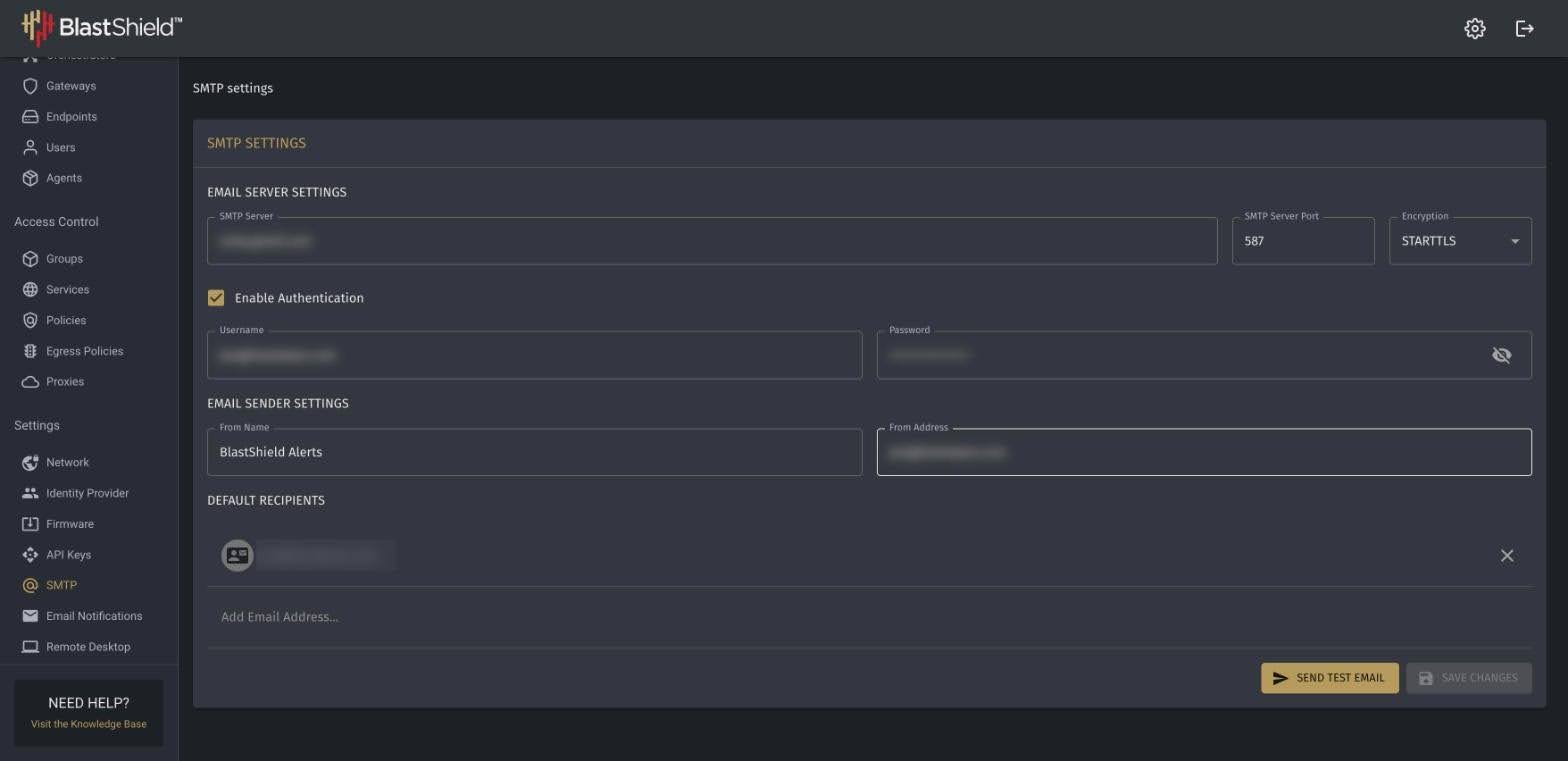
Note: The form defaults to port 465. Port 587 with STARTTLS is the combination BlastWave tested.
Send a test email
-
After saving, click Send Test Email. The button is disabled until changes are saved.
-
Check the inbox of a default recipient.
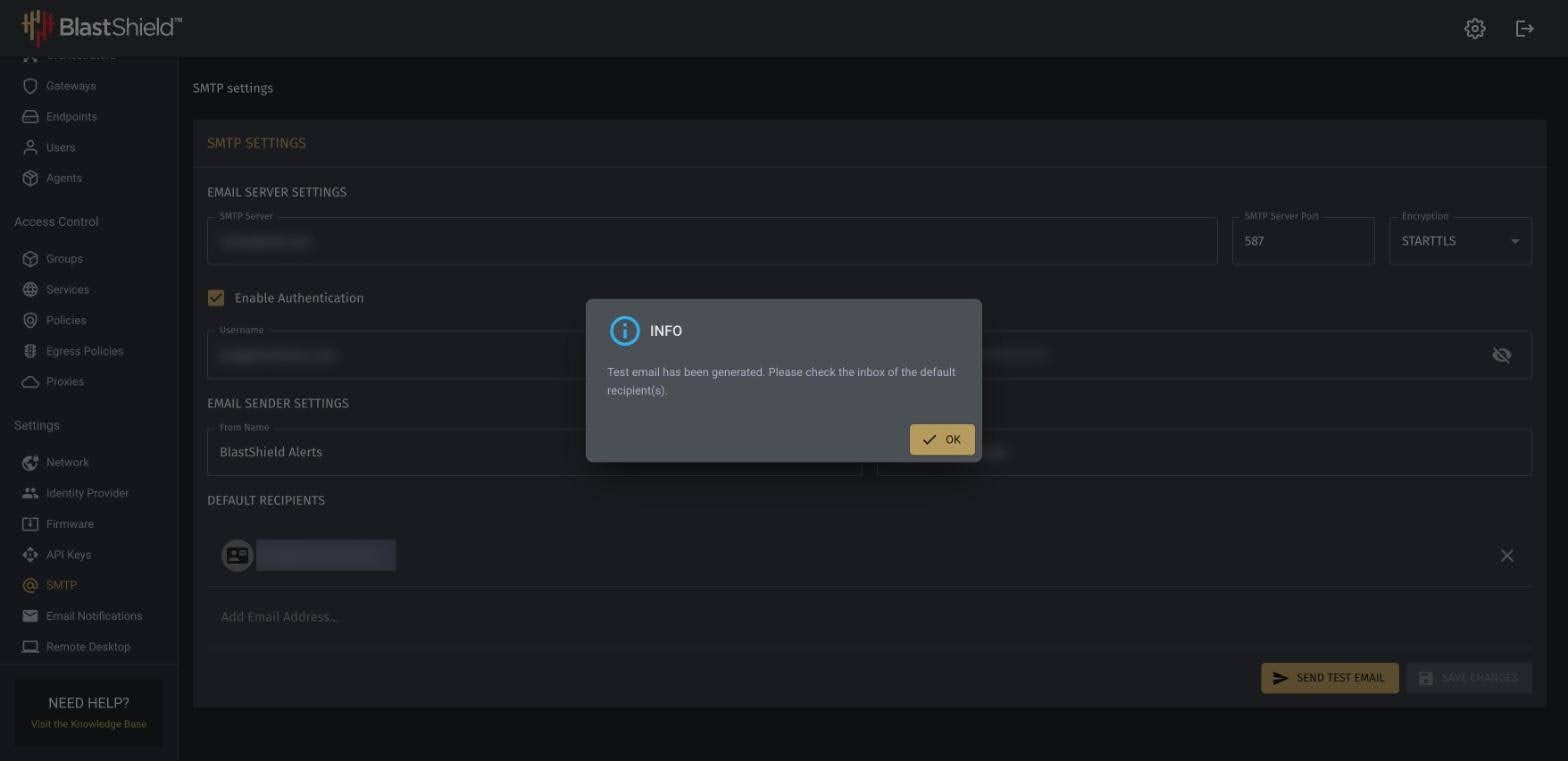
Note: The message "Test email has been generated" means the Orchestrator queued the email. It does not confirm delivery. If nothing arrives, check the spam folder, then see Troubleshooting.
Troubleshooting
Test the credentials from a computer to separate a credential problem from a network problem. This zsh example prompts for the password so it is not saved in your shell history. In bash, use: read -s -p "App password: " PW
read -s "PW?App password: "; echo
printf 'From: BlastShield Alerts <you@example.com>\nTo: you@example.com\nSubject: SMTP test\n\nHello\n' | curl -sv --ssl-reqd --url smtp://smtp.gmail.com:587 --user "you@example.com:$PW" --mail-from you@example.com --mail-rcpt you@example.com -T - 2>&1 | grep -E '^< (235|534|535|250 2.0.0)'
|
Reply |
Meaning |
Action |
|---|---|---|
|
235 2.7.0 Accepted |
Login worked. |
Retype the password in the Orchestrator and save again. |
|
534 5.7.9 Application-specific password required |
The normal account password was used. |
Create an app password. |
|
535 5.7.8 Username and Password not accepted |
The password is wrong or revoked, or app passwords are blocked. |
Create a new app password, or ask your Workspace administrator. |
If the test works from a computer but not from the Orchestrator, check that the Orchestrator can reach the server. From its console:
openssl s_client -starttls smtp -connect smtp.gmail.com:587 -brief </dev/null
Using Microsoft 365
BlastWave has not tested Microsoft 365. Microsoft’s published settings are:
-
SMTP Server: smtp.office365.com
-
Port: 587 with STARTTLS. Port 465 is not supported.
-
Limits: 30 messages per minute and 10,000 recipients per day, per mailbox.
Note: Microsoft is deprecating basic authentication for Exchange Online SMTP and recommends OAuth. The BlastShield SMTP form supports only a username and password.