
|
Upgrading BlastShield™ Agents |
|---|
|
We recommend that you keep all nodes In a BlastShield™ Network on the same firmware release. Agents may be upgraded in two ways:
|
To learn how to upgrade the Agent from its host, read the steps below.
If you want to upgrade your Agent from the Orchestrator, read this article: Upgrade the Agent from the Orchestrator
To learn how to upgrade the Agent from its host, read the steps below.
-
Check the current firmware release of your Agent.
-
Connect to BlastShield™ and open the Orchestrator in your browser (https://orchestrator.blastshield.io).
-
Click on the Agent menu on left-hand side, then from the status window on the right, click the name of the Agent you are interested in.
-
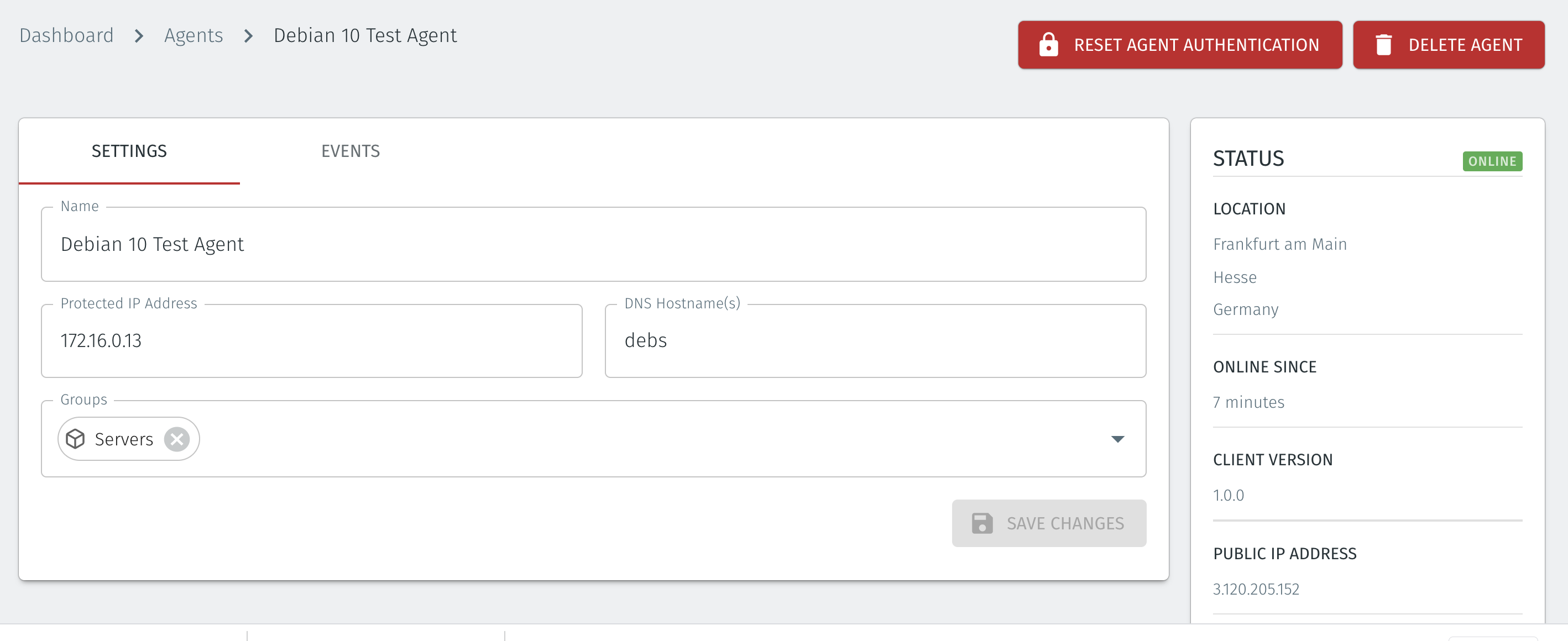
The firmware version and status will be displayed in the status window on the far right. Make sure the Agent is online before you start the upgrade.
-
Check the Orchestrator is on the latest release. If it is not on the latest release then you should upgrade the Orchestrator. Please refer to the Orchestrator upgrade process for details of how to check the release and upgrade it: Upgrade the Orchestrator firmware
-
-
Download and install the new Agent software on the server.
-
Upgrading the Windows Agent on a server.
-
Download the Windows Agent installation file to your server from here.
-
Run the installation file on your server.
-
You will be disconnected from the Agent IP address.
-
Reconnect to the Agent IP address
-
-
Upgrading a Linux Agent on a server.
-
APT based OSs including Debian, Ubuntu and Raspberry Pi OS
-
Download and update the package information.
sudo apt update -
Install the update
sudo apt install blastshield-agent
-
-
Amazon Linux2
sudo yum install blastshield-agent -
CentOS 8
sudo dnf install blastshield-agent -
CentOS 7
sudo yum install blastshield-agent
-
-
-
Verify the upgrade
-
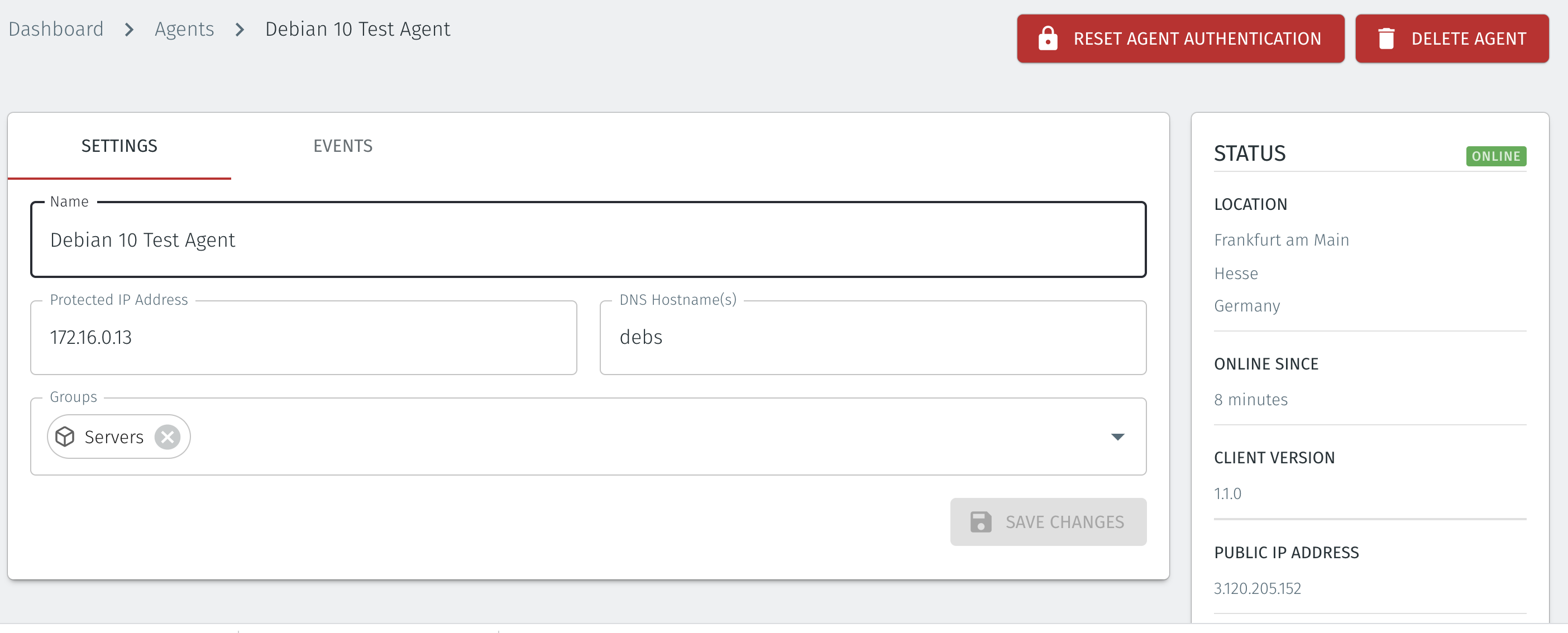
Once the upgrade has completed, the Agent’s status will change to online and the new firmware version will be indicated.
-