
|
Upgrading BlastShield™ Gateways |
|---|
|
We recommend that you keep all nodes In a BlastShield™ Network on the same firmware release. Always upgrade the Orchestrator firmware before upgrading the Gateways. |
To learn how to upgrade the Orchestrator watch the following videos or read the steps below.
Check for available updates, then download and update the software
Verify the update.
-
Check the Orchestrator for available updates.
-
Verify the firmware version of your Orchestrator.
-
Connect to BlastShield™ and open the Orchestrator in your browser (https://orchestrator.blastshield.io).
-
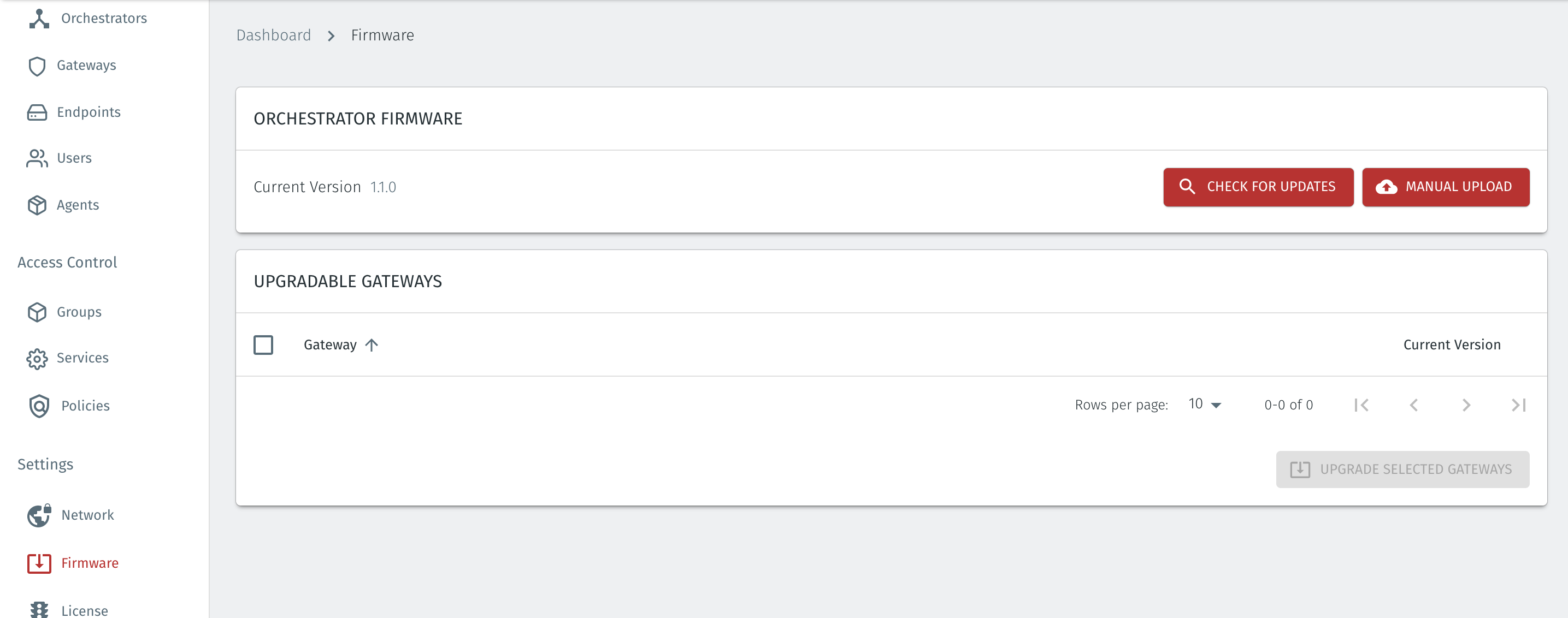
Click on the Firmware menu on the left-hand menu.
-
The firmware release of the Orchestrator will be displayed in the status window on the right.
-
-
Check if there is an update available. Click the red CHECK FOR UPDATES button.
-
The current version of the Orchestrator is displayed.
-
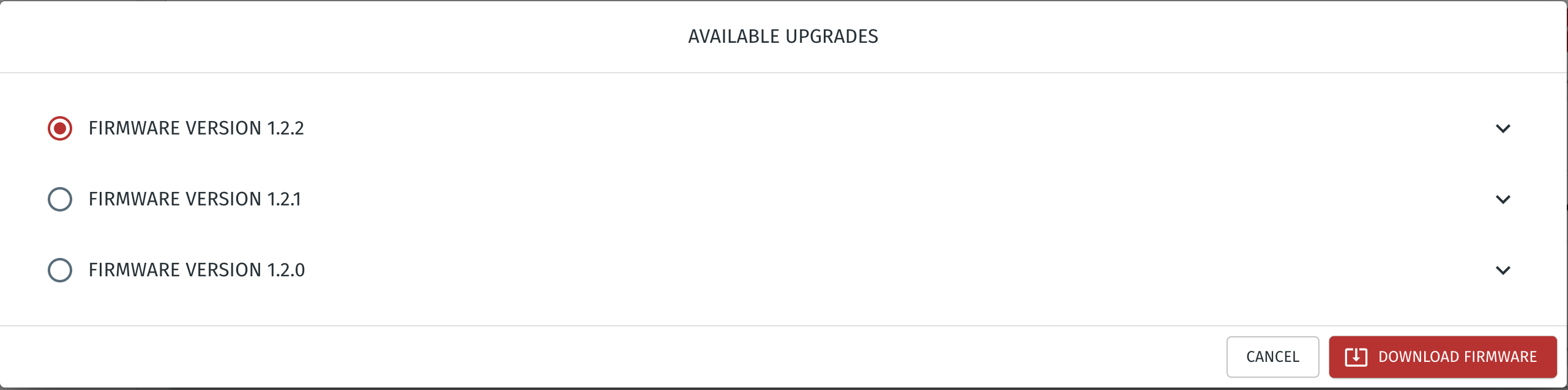
If there are available upgrade options, then they will be displayed as shown below.
-
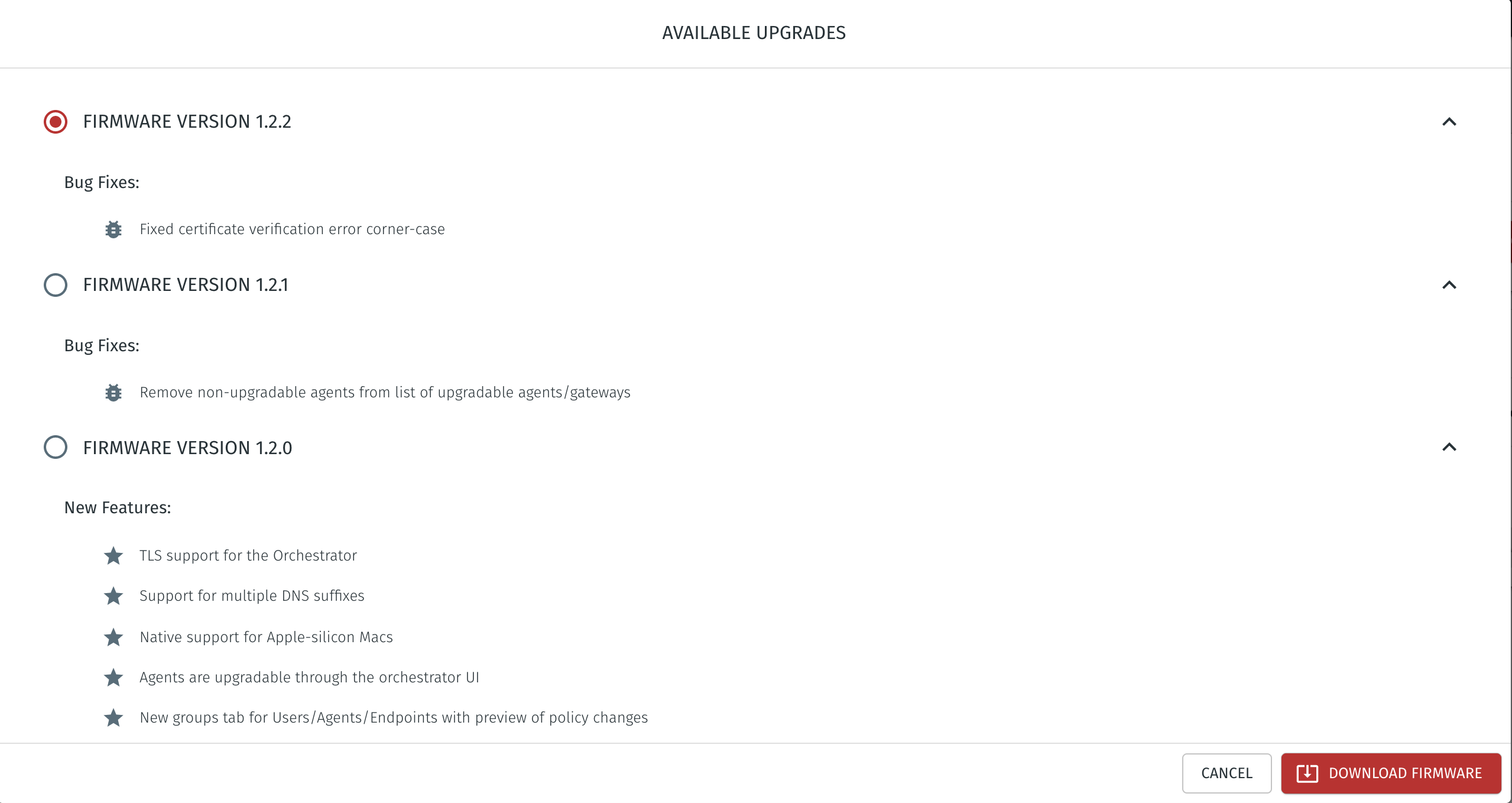
By clicking on the icon on the right hand side, you can expand the release information as shown below.
-
-
Download and install the new firmware.
-
If there is more than one release available, then it is recommended to use the latest bug fix version.
-
Select the version you wish to upgrade to.
-
Click on the red DOWNLOAD FIRMWARE button.
-
The new firmware will download to the Orchestrator.
-
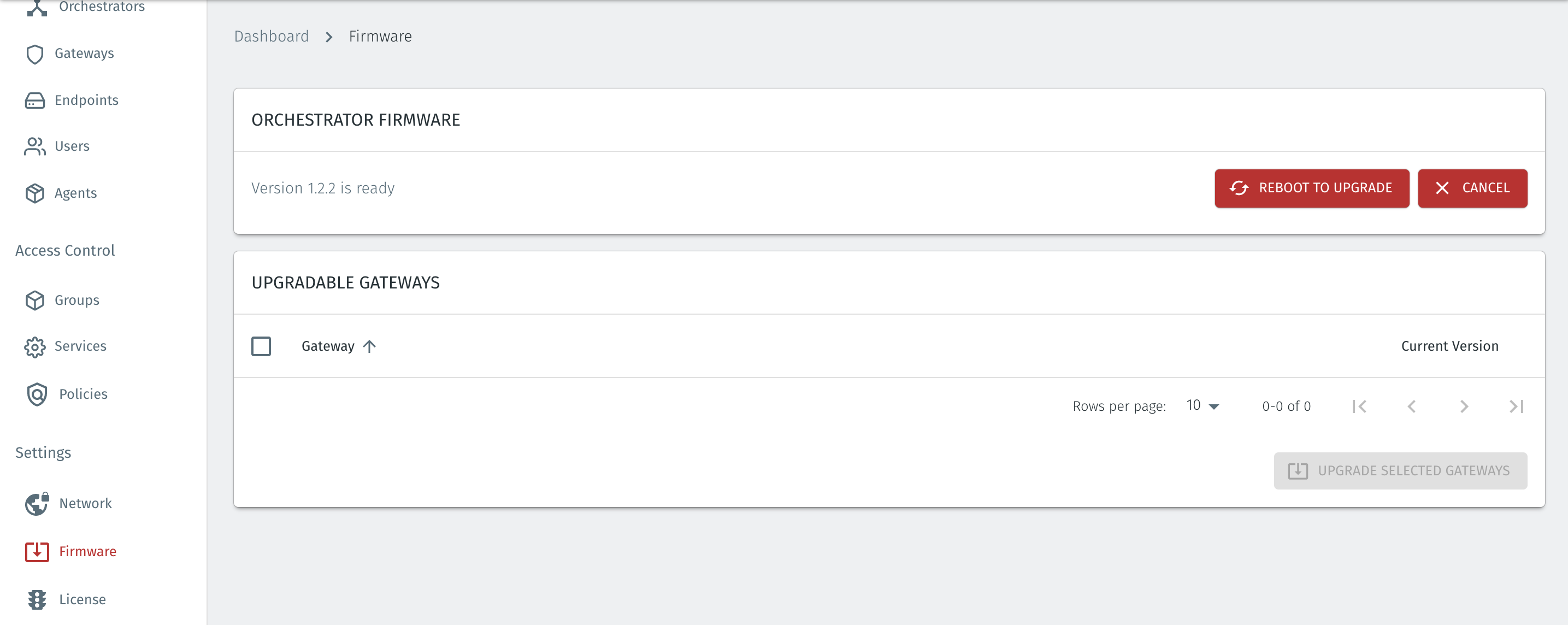
When the download is finished you will be presented with the options of cancelling the upgrade or rebooting to install the upgrade.
-
To proceed with the upgrade, then click on the red REBOOT TO UPGRADE button.
-
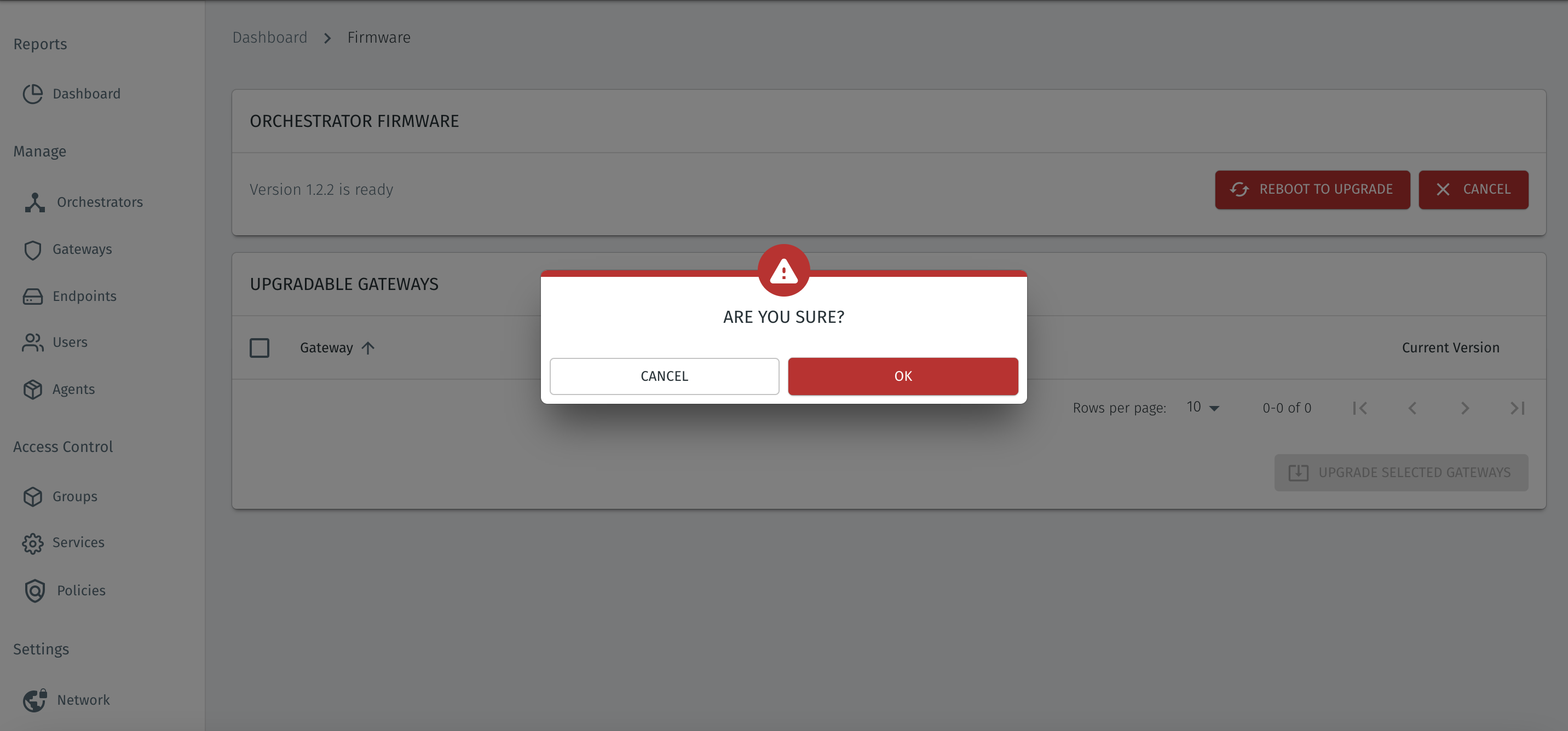
Before rebooting, you will be presented with the option to cancel or proceed.
-
To proceed with the upgrade, choose OK.
-
The Orchestrator will then reboot and upgrade.
-
At this point you will be disconnected from the Orchestrator.
-
After a few seconds you will be able to reconnect to the Orchestrator.
-
-
Verify the firmware upgrade
-
Once you have reconnected to the Orchestrator, choose the Firmware menu and view the status of the Orchestrator firmware version.
-
The new firmware version will be shown in the status window.

-
The current version should now display the new firmware version.
You can now go on to check the firmware versions of your gateways and upgrade them.
-